Testing the journey
In this exercise we'll test the journey we've build.
In Adobe Journey Optimizer you can run journeys in test mode to test if the outcome of your journeys aligns with your requirements.
To enable test mode, click on Test mode on the top right of your journey.
While in test mode, you can not make changes to the journey. You'll also notice that the left menu is replaced with the Test mode panel.
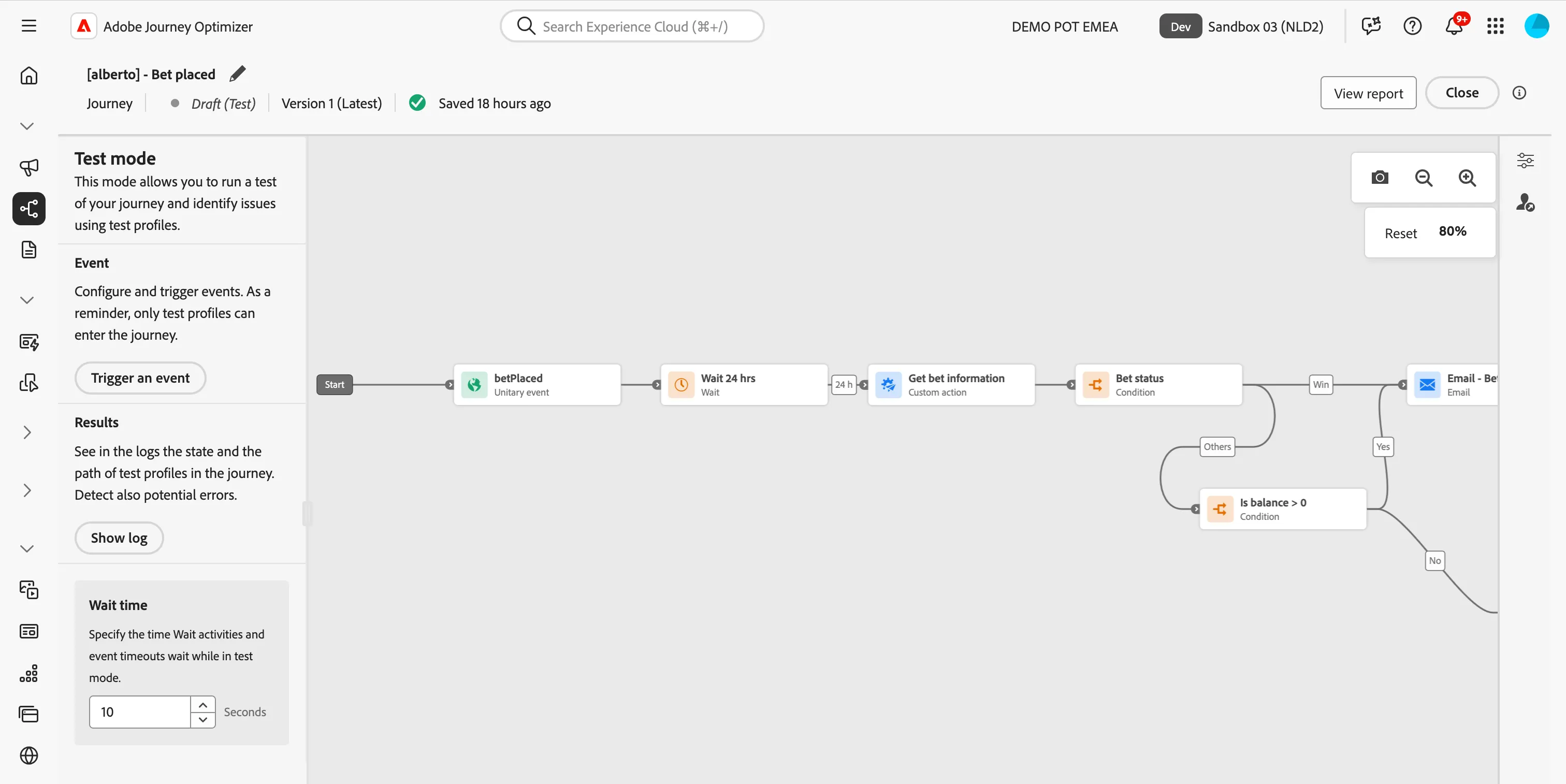
- Set the Wait Time to 10 seconds. This feature overwrites any wait-activities or timeouts with the given value. This will mean we do not have to wait 24 hours to check the bet status.
- Click on Trigger an event. This will open a window. In this window you can choose a profile to be in the betPlaced activity.
- Fill out all the values for the event.
- Set Event Type to bet.placed
- Set Bet ID to 1234abcd
- Set Bet Item Name to Premier League Winner 2024/25
- Set Bet Type to Football
- Set Created Date to 2025-05-15T09:58:09.007Z
- Set Event ID to a string of your choice
- Set Stake to a number of your choice
- Set Status to PLACED
- Set Core to your profile's ECID*
- Click Send to start the test.
*If you don't have your test profile's ECID at hand, you can find your test profile in AEP using your email address. Refer to the Finding your profile exercise in the Welcome! section if you don't know how to do this.
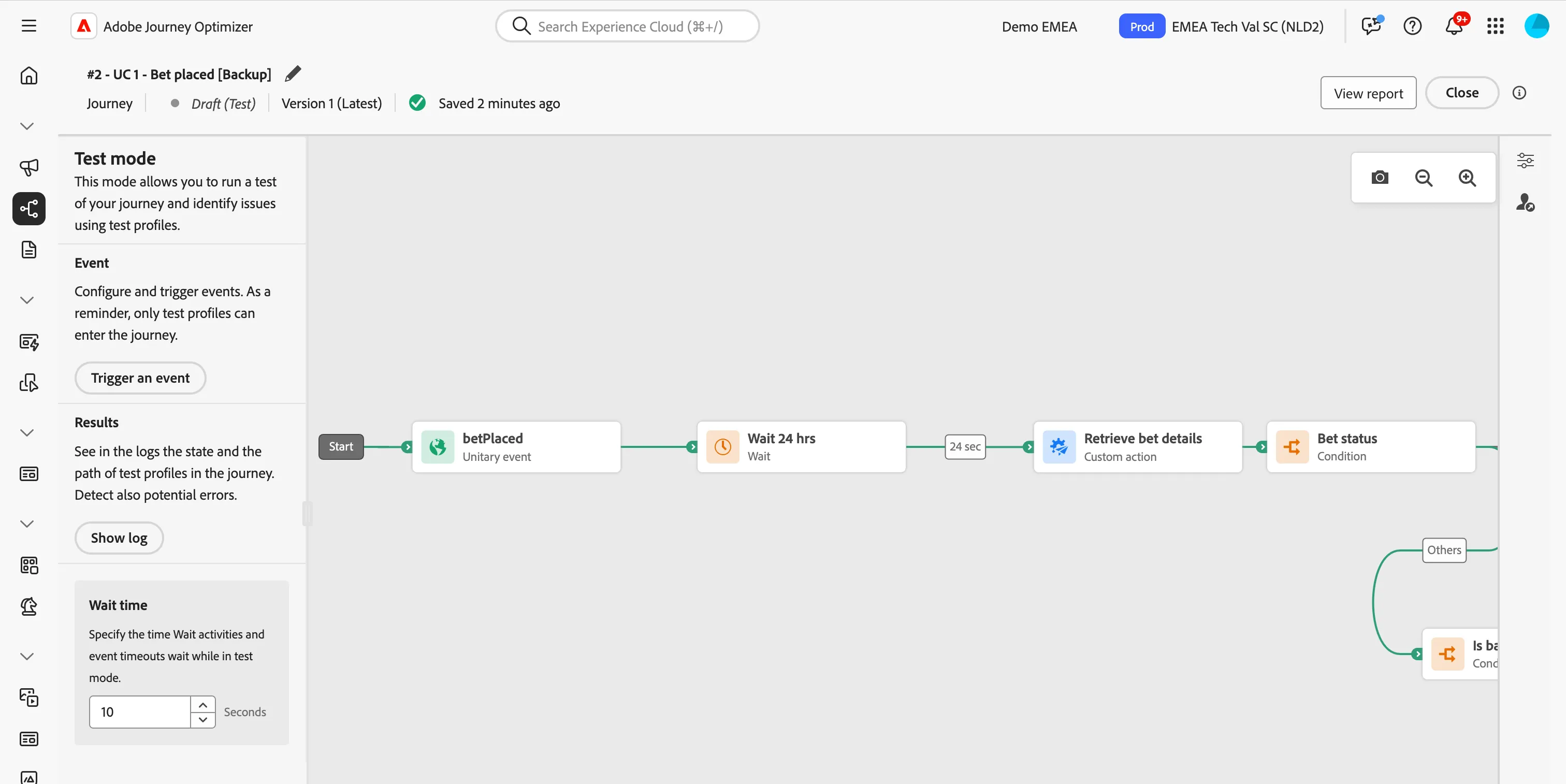
The window will close and the test will now start. In a few moments you'll see more arrows turn green. This is your test profile moving through the journey. You will receive the email(s) within the next minute. Your screen should look like this:
You've now tested your journey.
- Turn off test mode by clicking Close in the top right corner.
- Click the < in the top left to navigate back to the Journeys overview.
Congratulations! You have now successfully configured and tested an end-to-end aquisition journey for your potential first-time buyers!