Experience Data Model
Defining our Experience Data Model
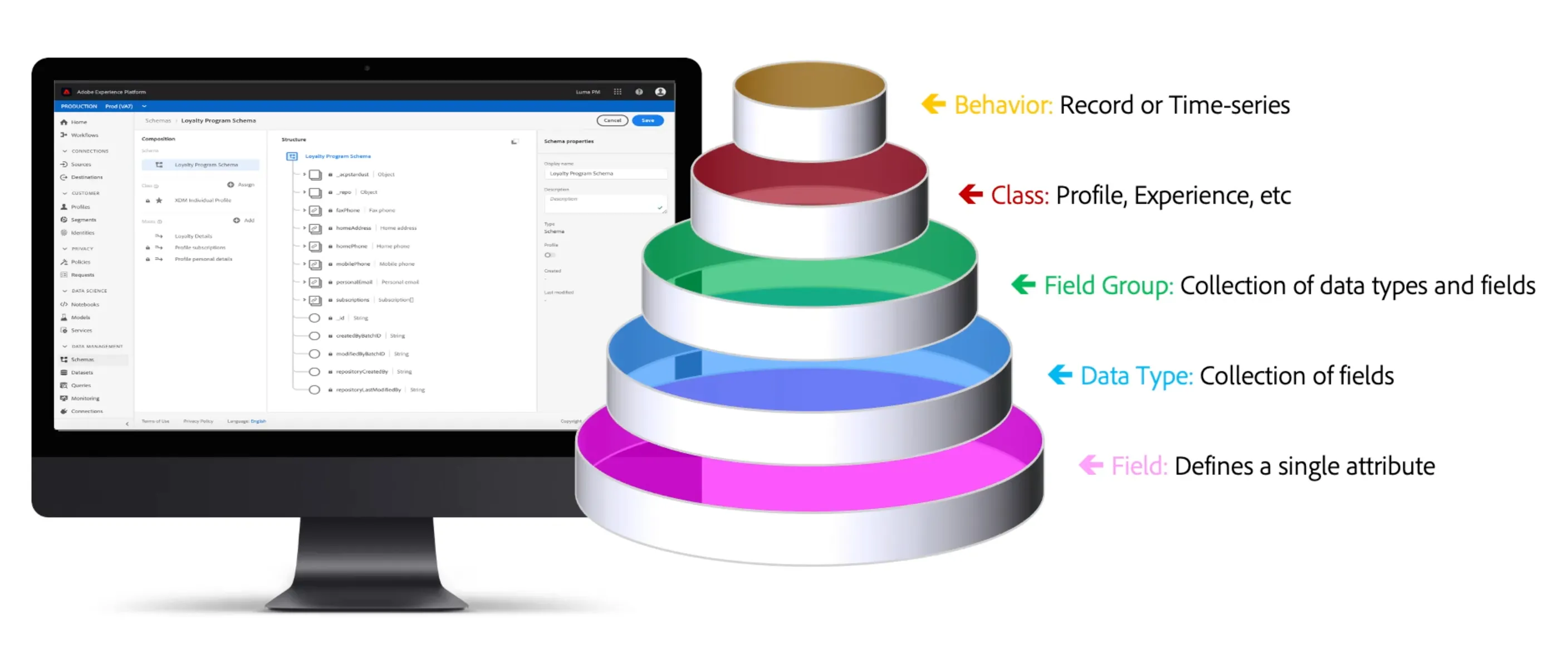
The Experience Data Model (XDM) is Adobe's standard data model to describe customer experiences. When you use XDM to build schemas and ingest data adhering to these schemas, you can begin to use the XDM system. The XDM System is the infrastructure that supports real-time customer profiles, machine learning, and Customer Journey Analytics in Adobe Experience Platform.
Experience Platform implementations begin by laying this XDM foundation. You compose schemas that describe your company’s data in a structured, in a reusable way. Once you’ve defined the structure of your data, you can stream or batch that data into datasets.
Creating a Schema for Customer Profile Data
Schemas are a crucial foundation of Experience Platform. Let’s dive into the different components that go into schemas to help you better understand their composition. Let’s start with a simple modeling exercise. What is an experience? In a business to consumer context, it’s basically just somebody doing something. How would we model that in XDM?We must consider who they are and what they're doing.
Experience data can be classified into two distinct categories:
- Record
- Time series
Record data collects attributes about a subject, typically an individual person, like name, address, loyalty program status.
Time series data, describes what this subject did, with context around it.
It’s best practice to define schemas for every combination of channel, primary identifier and type of data collected. In this example, we will be onboarding product and customer propensity data from our CRM system, so marketers can use this data in their journeys.
Choose a Class
A class imparts the basic concept of what schema describes. In this case, a person. Classes describe the smallest number of common properties that all schemas based on that class will need. Since we are creating a schema to describe Customer Profile data, we will select the XDM Individual Profile class, since our schema will describe attributes of a person.
Build a schema and select a class:
- Click on Schemas in the menu on the left side of your screen.
- Click the button to + Create Schema in the top right corner of your screen, and select Manual, then select XDM Individual Profile.
- Click Next.
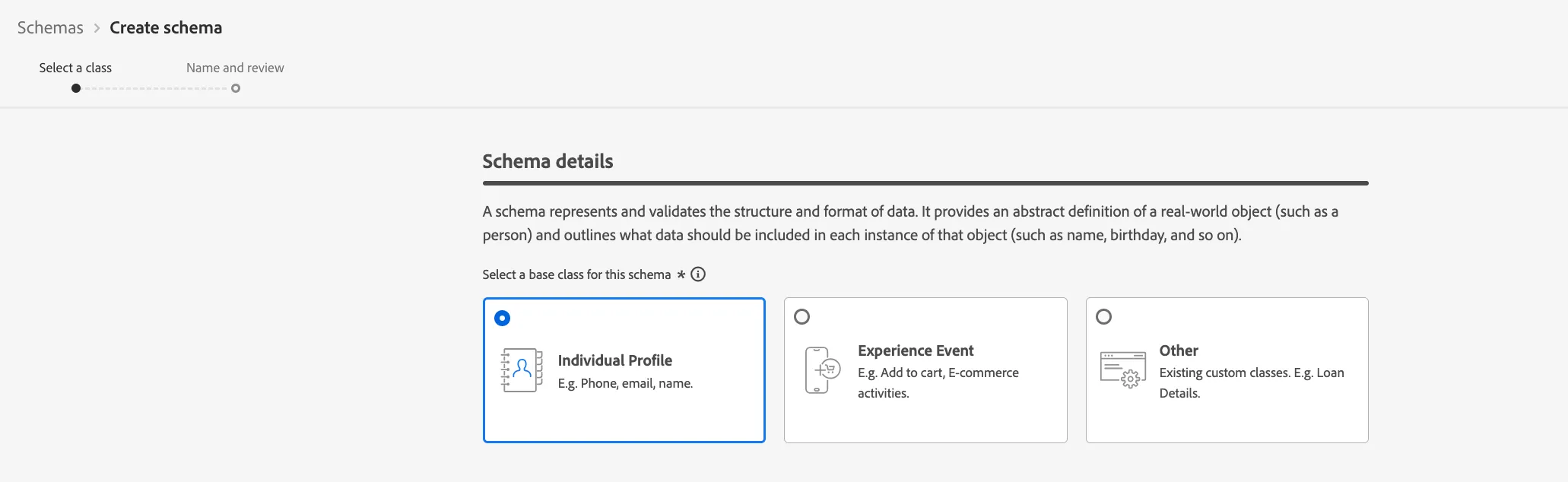
- Name your Schema [Your Name] - Customer Profile Schema.
- Select Finish.
Create Field Groups
Next, we need to add the additional fields to our schemas. This is done with field groups. Field groups are reusable components of structured fields, organized around concepts. So as an example, we would use the Demographic Details for the name and address.
Experience Platform includes many standard classes and field groups that cover common industry use cases. You can also define your own classes and field groups to represent data for your particular business needs.
To add field groups to your schema:
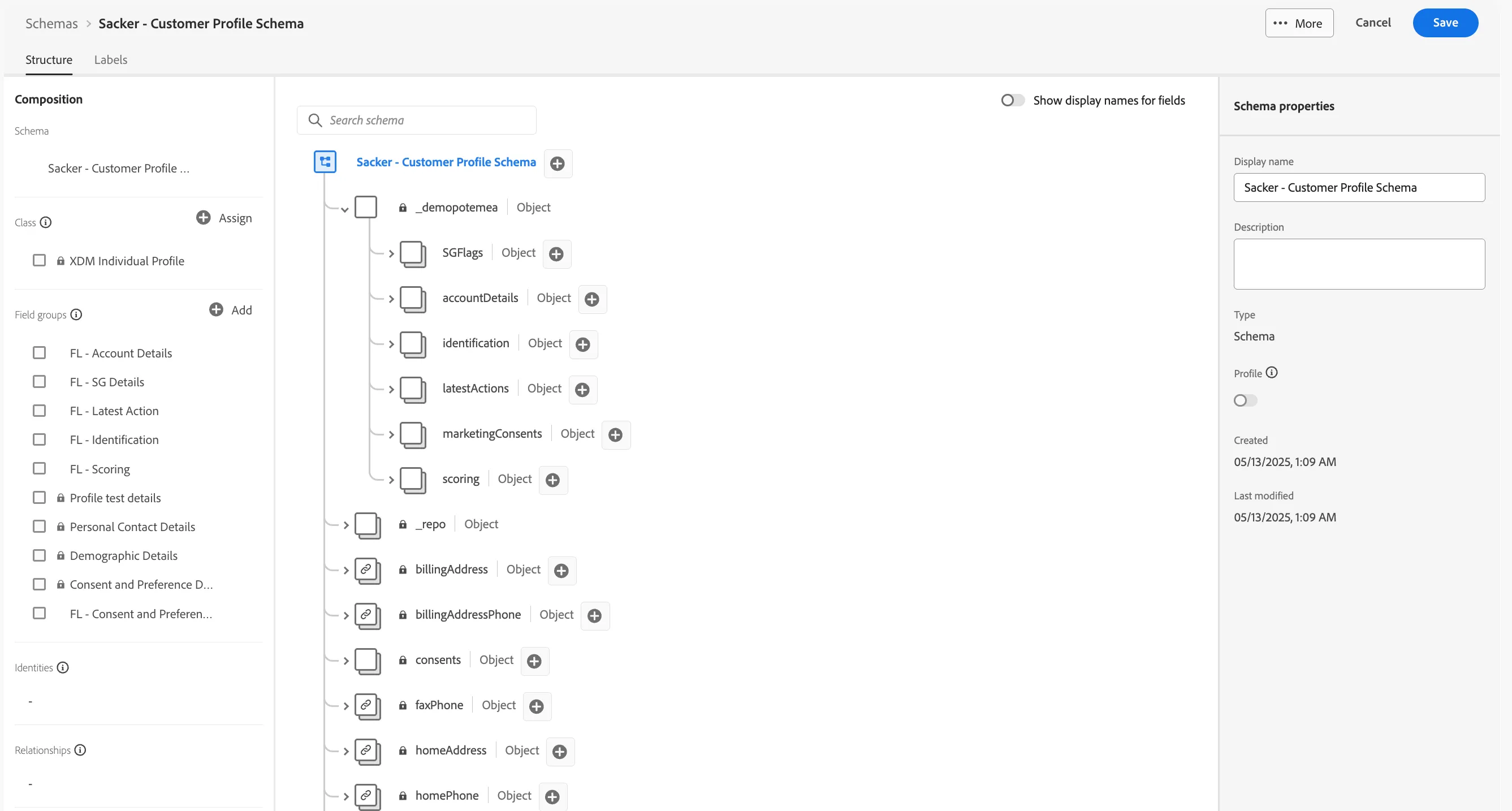
- Click +Add in the field group section under Composition.
- To start, add the following Adobe defined field groups to your schema:
- Consent and Preference Details
- Demographic Details
- Personal Contact Details
- Profile Test Details
- Add the pre-created Customer defined field groups:
- FL - Scoring
- FL - Active Bets
- FL - Latest Action
- FL - Identification
- FL - SG Details
- FL - Account Details
- FL - Consent and Preferences
Your Schema definition should now look like this:
Specifiy the Identities
When building real time customer profiles with Experience Platform, another key component of are identities. Identities are what link together data from different datasets. In the case of multiple data sources, schemas would need to share a common identity field and pass in a common value for those records to come together.
You can define Primary and Secondary Identifiers for your Schemas. A Primary Identifier is the most important one, as all collected data will be linked to this identifier.
You will now ensure the Primary identifier is marked correctly for the Customer Profile data.
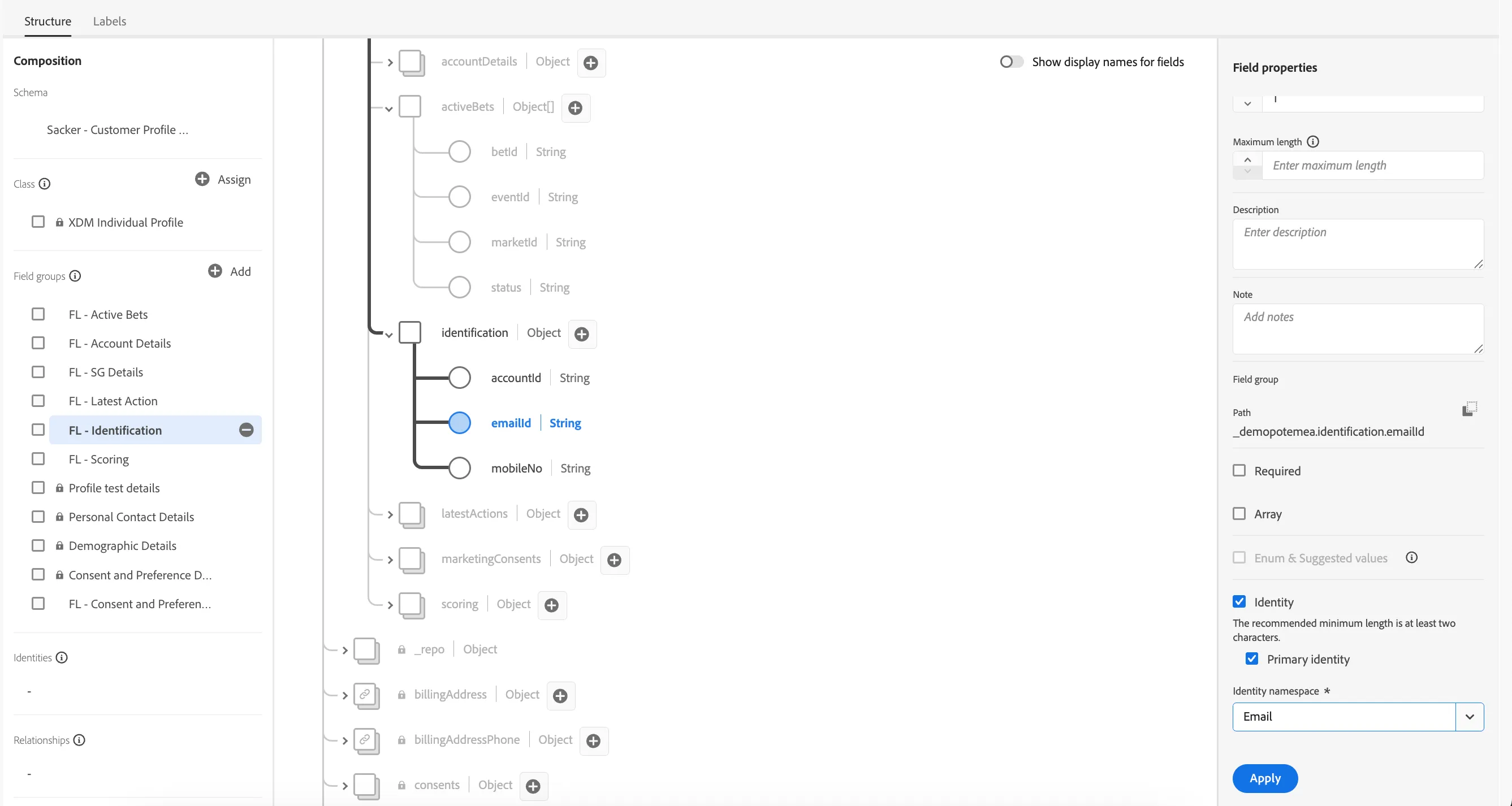
- On your schema tree, expand the node _demopotemea.
- You should see an identification object, also expand this.
These are all the identities used in our implementation. For our Customer Profile data we want to choose the Email ID as the primary Identity:
- Select the emailId field and in the right hand menu scroll down and check the Identity box.
- Then check the Primary identity box.
- Now we have to assign an identity namespace. Select Email from the drop down list.
- Click Apply.
Define a relationship to another Schema
Relationships allow you to use one dataset as a lookup table for another. In our case we want to define a relationship between the Active bets (specifically, the event ID) in the Customer Profile Schema and the Event ID in the Events Catalogue Schema. The Events Catalogue stores the meta data about the event, which we will reference when building Audiences later in the Lab.
To configure a relationship between two schemas:
- In your Schema, find the field Event ID (_demopotemea > activeBets > eventId).
- In the Field Properties, select Add Relationship.
- Choose Type one-to-one.
- and Reference Schema as Flutter - Events Catalogue
- The Identity namespace is the lookup key, in this case, the Event ID.
- Click Apply.
Now you can Save your schema.
You have successfully created a Schema to represent your Customer Profile data!
To summarise Schema composition: