Visualise your profile
In this exercise you will use the AEP UI to view your real-time customer profile.
In Adobe's Real-time Customer Profile, all profile data is shown alongside event data, as well as existing audience memberships. The data shown can come from anywhere, from Adobe applications and external solutions. This is the most powerful view in Adobe Experience Platform, the true experience system of record.
Use the Customer Profile View
To log into the Adobe Experience Platform, check the Welcome! section.
- In the left rail, click on Customer and choose Profiles.
- On the Profiles tab, click on Browse.
On the Real Time Customer Profile panel on the demo website, you can find multiple identities. Every identity is linked to a namespace. You can see these combination of id and namespaces.
Identity | Namespace |
|---|---|
EXPERIENCE CLOUD ID | 83433386964176742472712675204149950968 |
PHONE NUMBER | +447929141042+01 |
CRM ID | 606164686 |
With Adobe Experience Platform, all IDs are equally important. Previously, the Adobe ID was the most important ID in the Adobe context and all other IDs were linked to the ECID in a hierarchical relation. With AEP this is no longer the case, and every ID can be considered a primary identifier.
Typically, the primary identifier depends on the context.
- If you ask your Call Center, "What is the most important ID?", they will probably answer, "the phone number!".
- But if you ask your CRM team, they will answer, "the email address!".
Adobe Experience Platform understands this complexity and manages it for you. Every application, whether an Adobe application or non-Adobe application, will speak with Adobe Experience Platform by referring to the ID they consider primary. And it simply works!
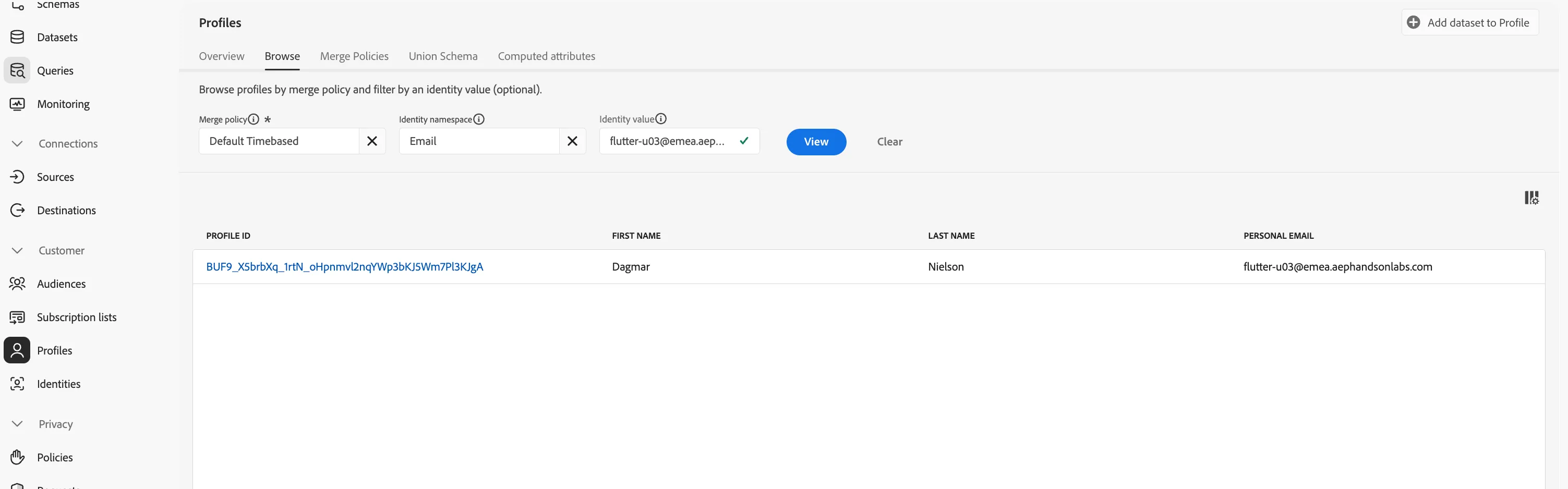
- For the field Identity namespace, select Email
- For the field Identity Value enter the email address you have been assigned for this Lab. E.g. [email protected]
- Click View. You’ll then see your profile in the list.
- Click the Profile ID to open your profile.
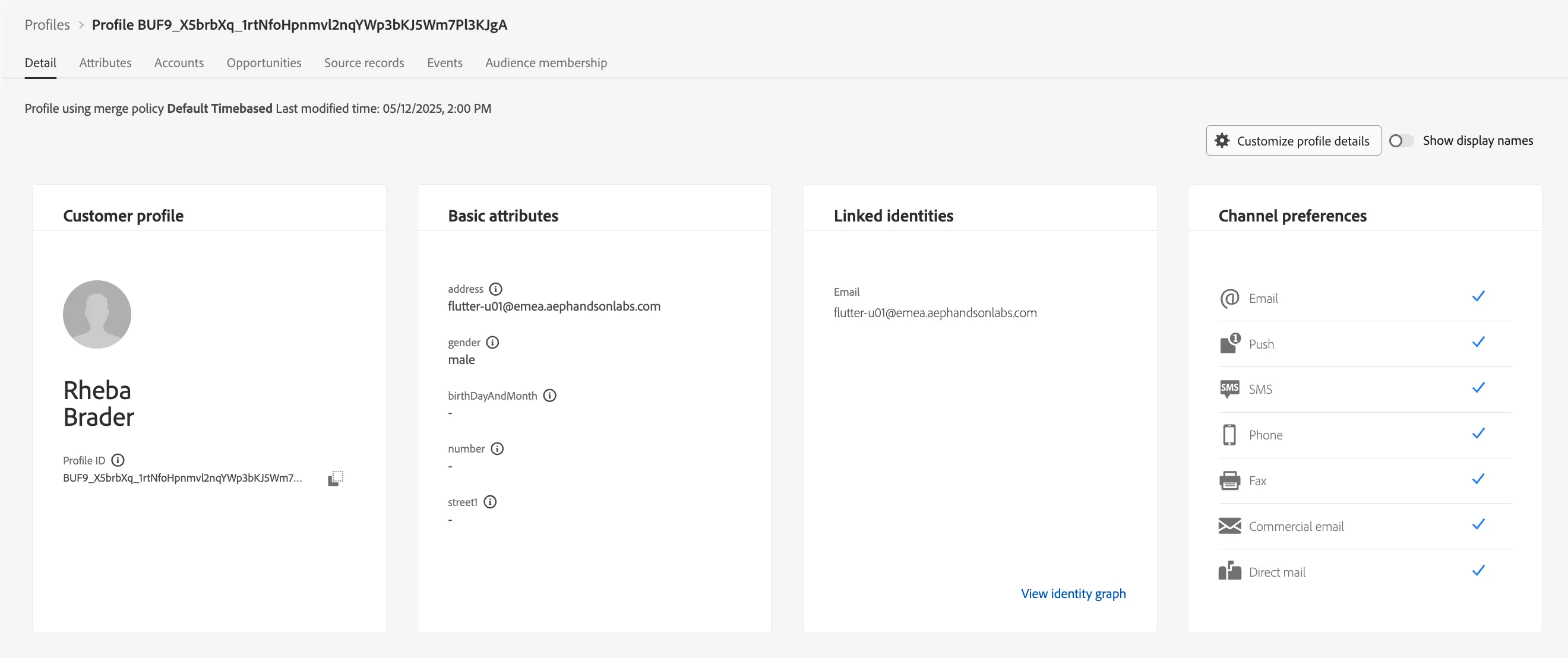
You now see an overview of Basic Attributes, Linked Identities and Preferences for your customer profile. This user interface is customisable.
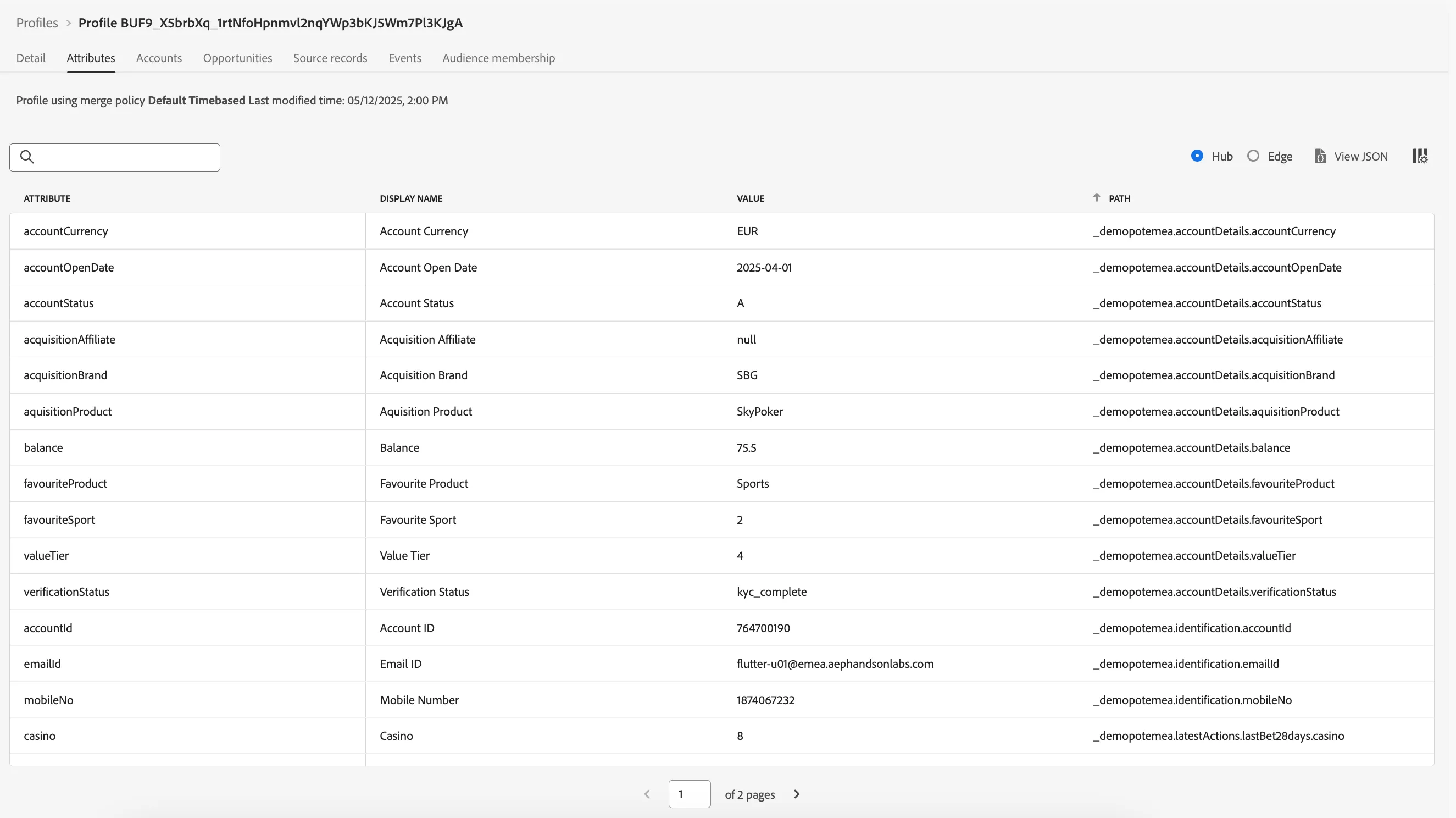
If you’d like to see all available Profile Attributes for your profile:
- Click on Attributes at the tab bar of overview panel.
Visit the demo website : Anonymous to known
The profile you are using in this lab will not yet have any associated events since we haven't authenticated on the website. Let's do this now and see how our Customer Profile attributes and website interactions become part of the same, single customer profile:
- Click Sign in, in the top, right of the screen.
- Click Create an account.
- Fill in the registration form using your real Flutter email address. Click Submit to register your profile.
We ask you to fill in this Registration form with your real email address becuase you will be configuring Journeys that send email communication in the following labs, and we want you to be able to receive these to your inbox!
The Sandbox we use for the Labs is reset after the session, so no emails will be stored.
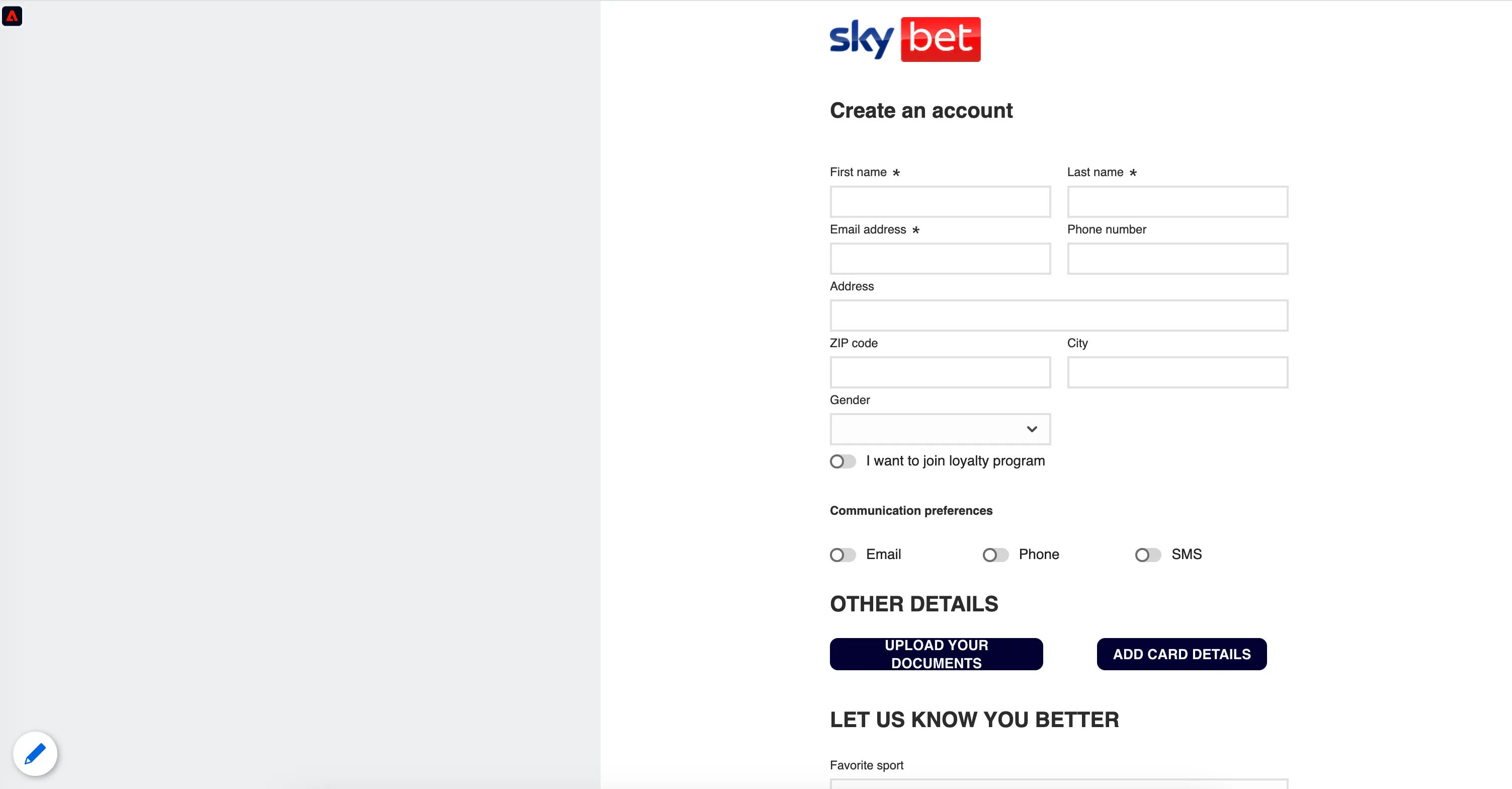
Your should see that any website interactions are now associated with your assigned email ID, including any interactions before you authenticated.
Let's return to the Profile Viewer UI and check this.
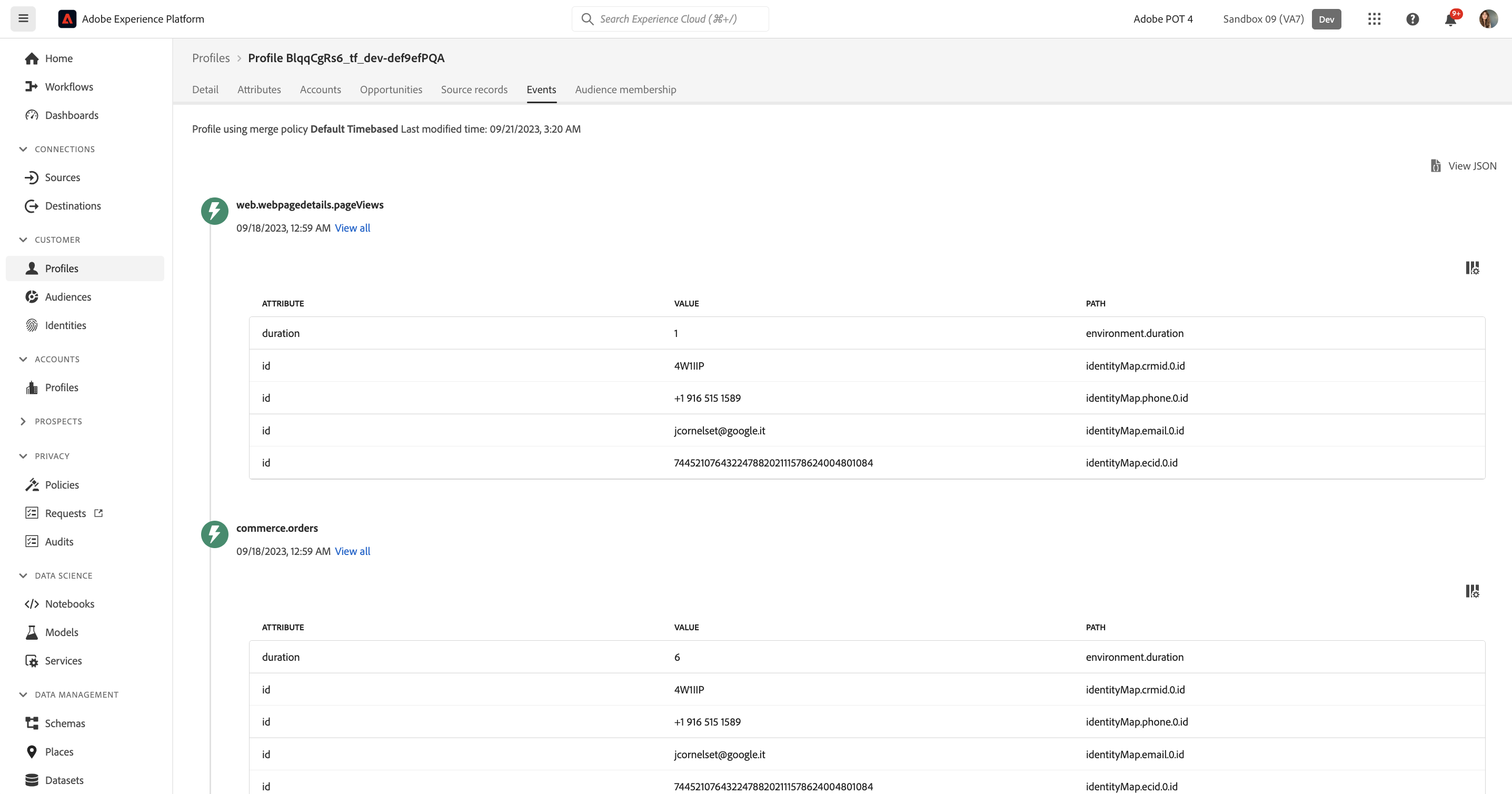
- To see all entries for every experience event that is linked to your profile:
- Click on Events at the tab bar.
- You can click on View all for each event to see more details of a specific experience event.
To see all audiences that this profile belongs to (we will discuss more about Audiences in a later exercise):
- Click on Audience Membership at the tab bar.
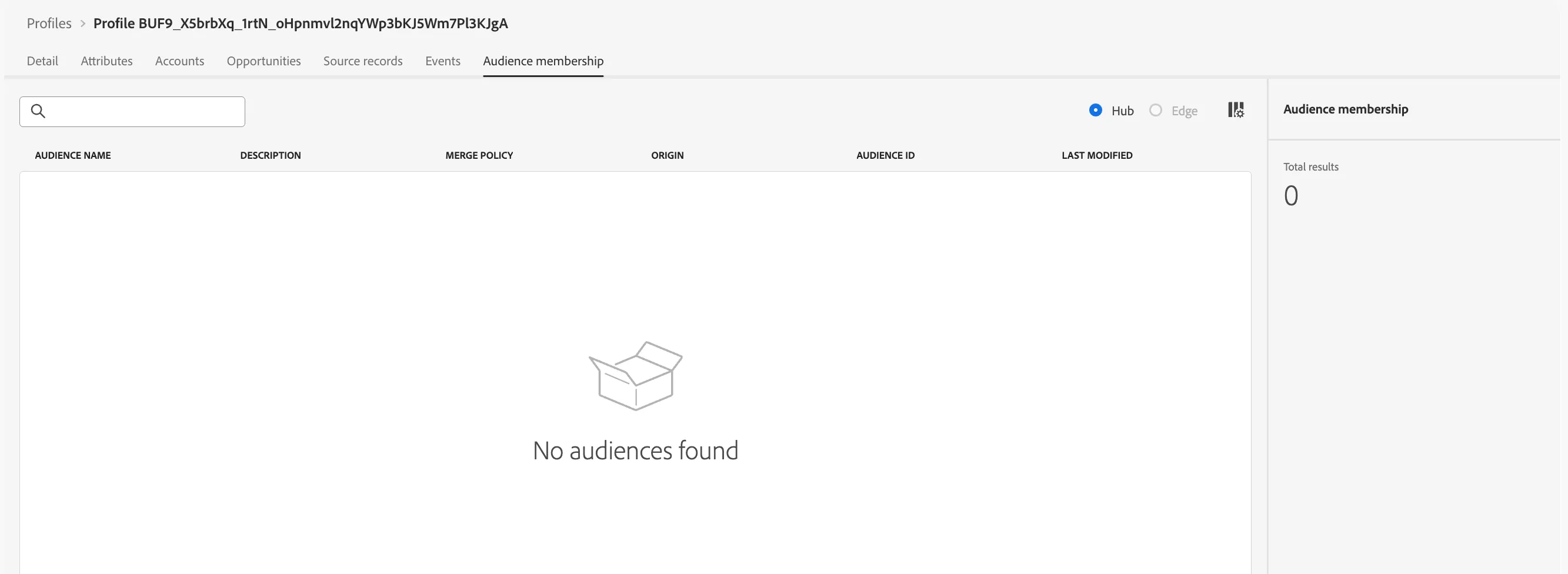
You have now successfully viewed your customer profile in Adobe Experience Platform.