Build an audience
Story so far
The customer has wish-listed a yoga mat but left without buying. You now build the audience that will bring them back through retargeting.
Create an audience
You want to create a rule that will include all profiles that have wish-listed a yoga product. These customers are close to purchase intent, therefore this audience could then be used for different use cases and channels.
- Open Experience Platform by clicking the
 icon on the top-right corner, the select Experience Platform.
- In the menu on the left side, click on Customer > Audiences.
- Click on + Create Audience. This will open the Create Audience popup.
- Select Build Rule as the create method. This will open the Rule Builder.
You will immediately notice the Rule view and underneath the Attributes and Events sections.
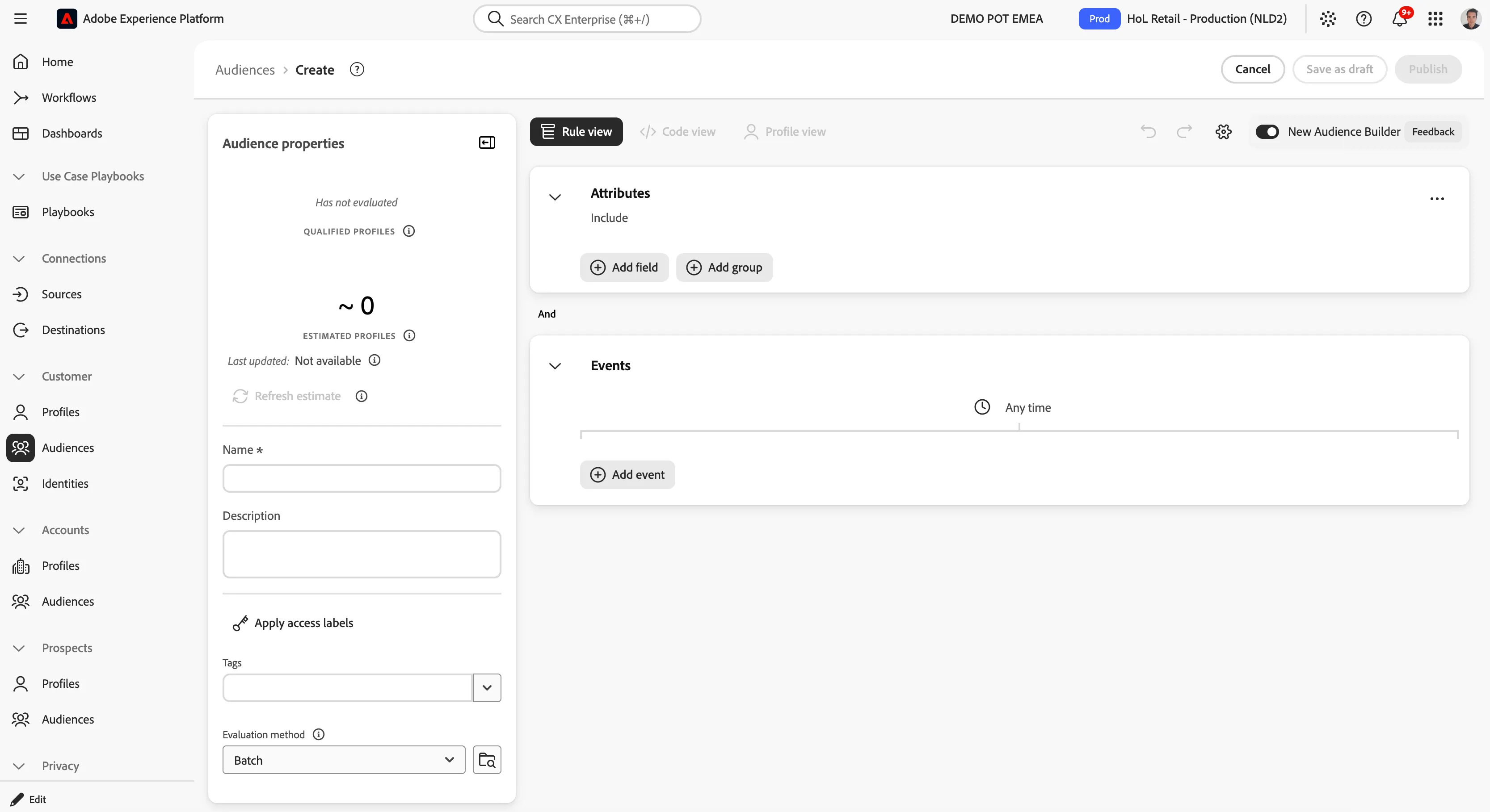
Add event
Build an audience for profiles who have saved a yoga product for later:
- In the Events section click on the
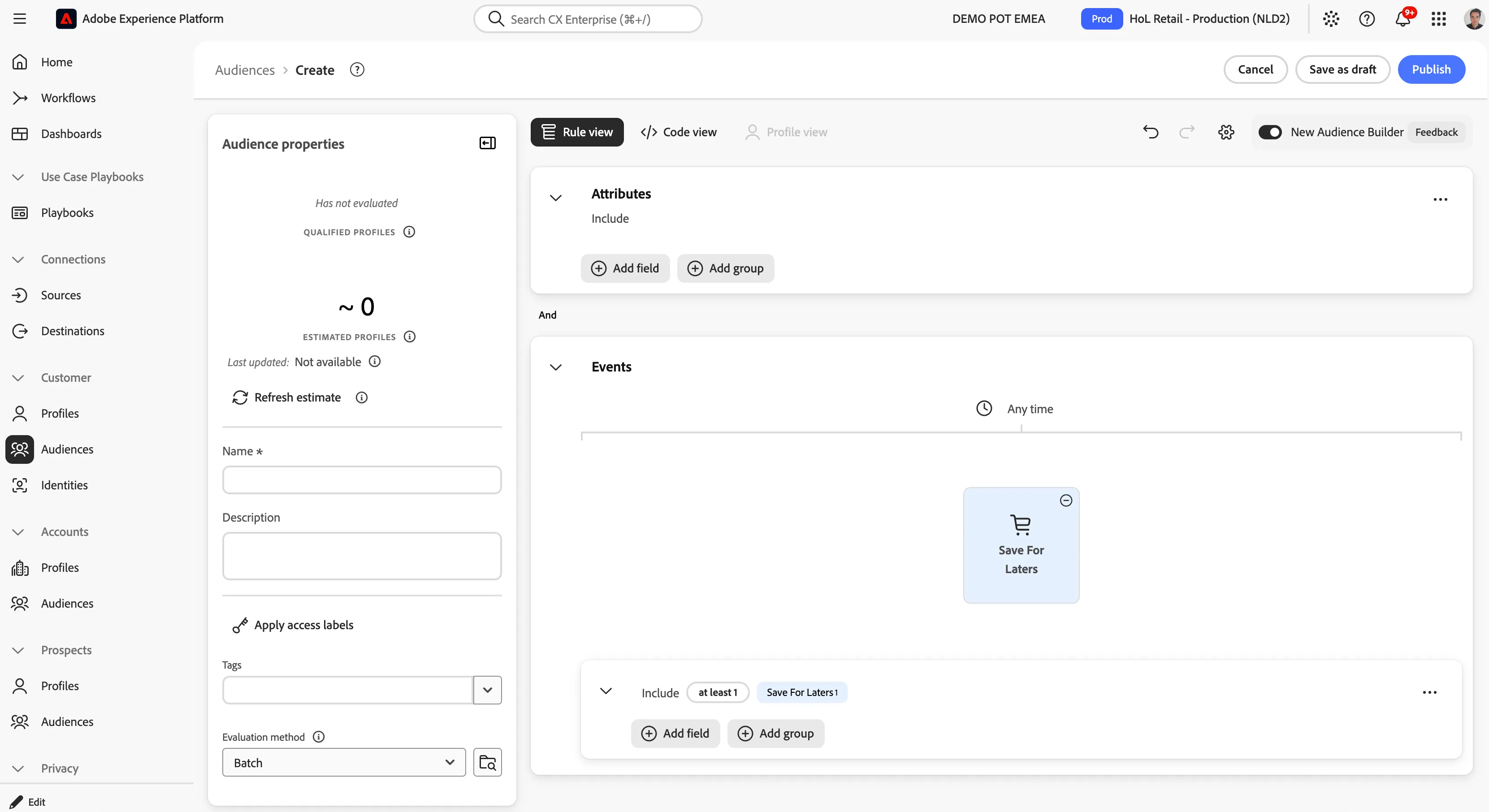
 button. In the text search field, type save. You will see a Save For Laters event listed as Event Type.
- Click on the
 icon next to the Save For Laters event type.
Your screen should look like:
Audience estimation
At each step in defining your audience, you can get an estimate of the audience's population:
- Click on Refresh Estimates, on the left-hand panel
You will then see an estimation of your current audience size. This is very helpful for a business user, so that they can see the impact of certain attributes on the resulting audience size.
IMPORTANT: the sandbox you're using for the exercise has been reset before the bootcamp, so Refresh Estimate will likely return 0.
For more details on how estimate works, see the documentation.
Additional details
You need to add more details to match the requirements.
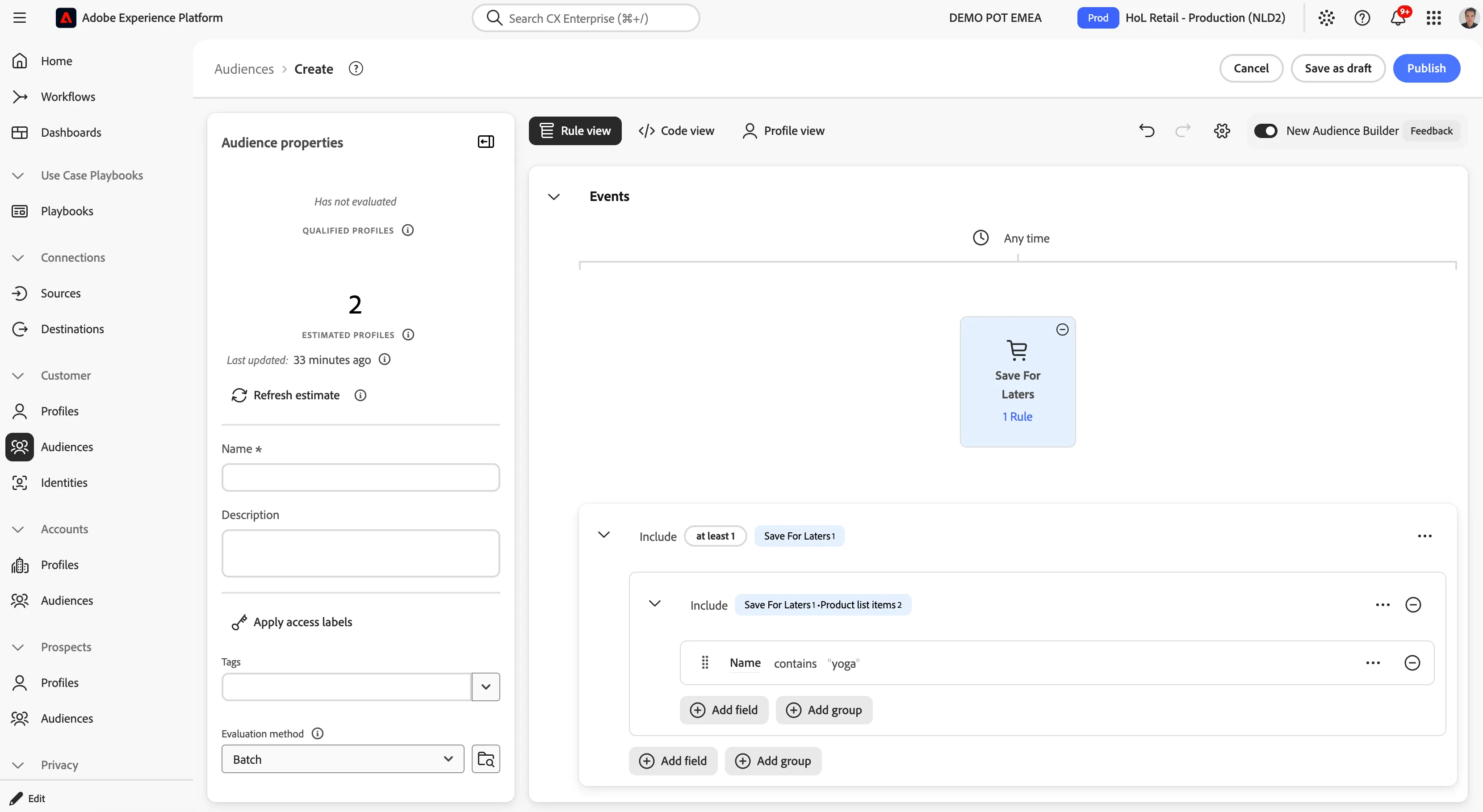
Make sure the Save for Laters event is selected and you have the option below to Add field or Add group.
- Click on the Add field button
- Search for Name, you should have several results.
- Click on the icon next to the field XDM Experience Event > Product list items
- Change the operand drop down to Contains.
- Enter the yoga value in the text field. This will select only the events that have a "yoga" product saved for later.
You also want to specify the time period in which the wishlist event must occur:
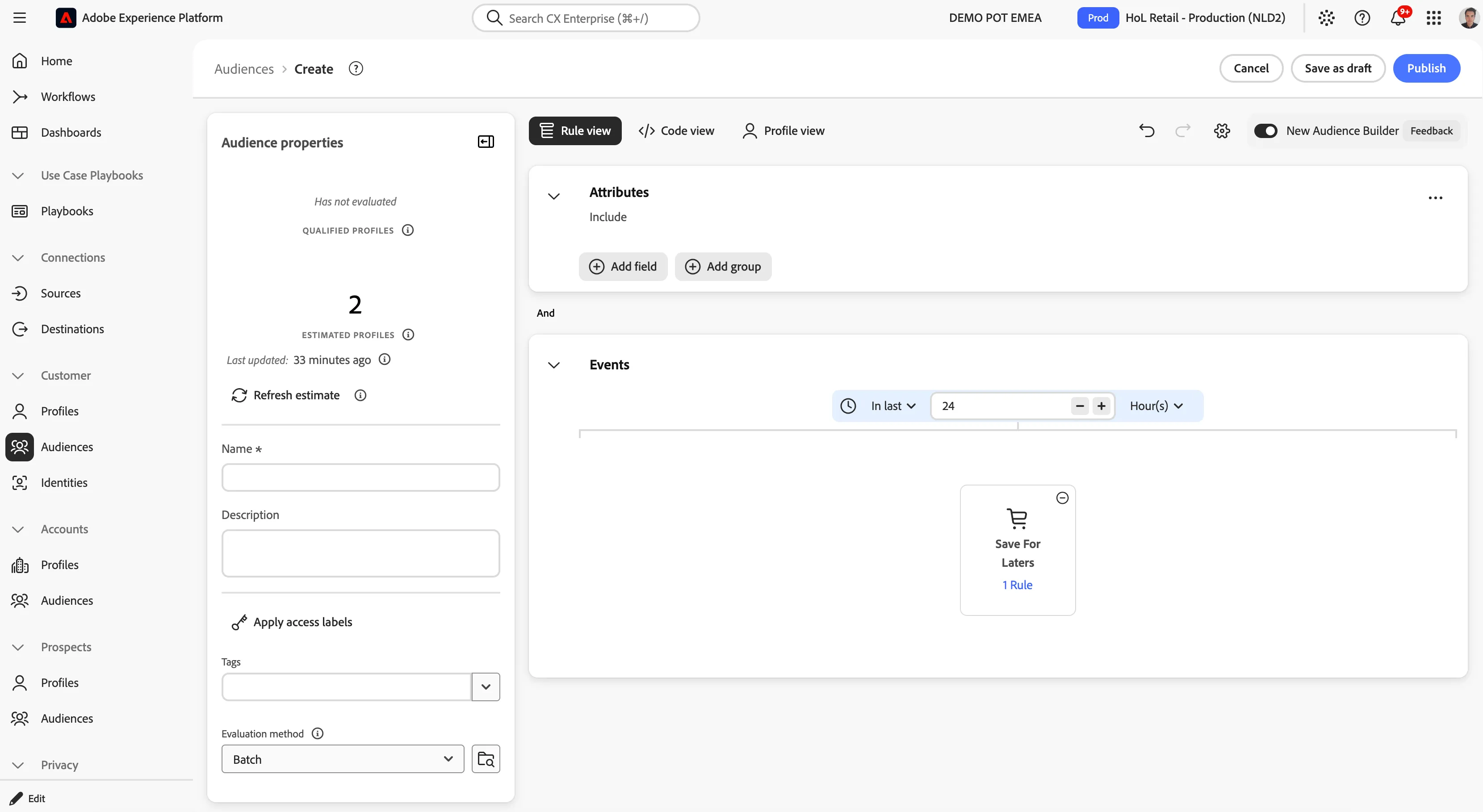
- In the Events panel, change the Any time drop down to In last 24 hours.
Publish audience
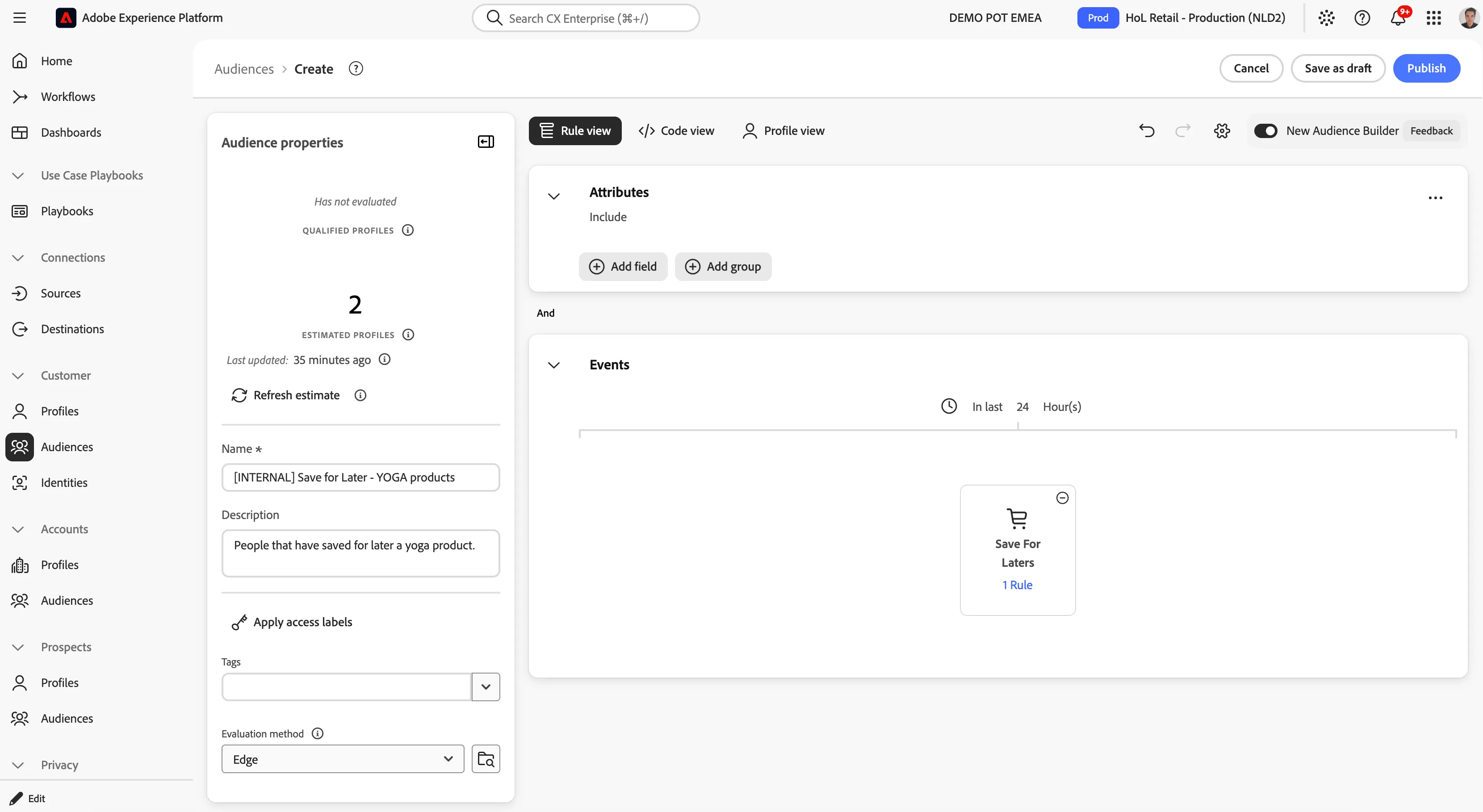
- Enter a Name for your audience using the following naming convention, e.g. [{{LASTNAME}}] Save for Later - YOGA products
- (optional) Enter a Description.
- Select Edge from the Evaluation method dropdown list.
You can read more about evaluation methods here.
Your final rule should look like:
- Click on Publish.
You will be taken to the Audience summary screen, outlining your audience definition.
You have now successfully created an audience using the Adobe Experience Platform Audience Builder.