Create the journey
Now you'll build the journey that acts on the audience from the previous exercise. When a customer's order is about to arrive in store, Luma wants to send a personalised heads-up, then - if the order isn't collected in time - escalate to the call centre so an agent can follow up.
Prompt sequence
Create the journey with a single prompt. As Coworker processes it, approve and validate its inputs. When prompted to save the journey to AJO, reply yes (or yes, please).
Notice this prompt doesn't spell out how long the Pickup Grace Period is. Coworker already knows it's 3 days, because you loaded that into Business Context in Module 2. It also references the call centre action that already exists in the sandbox, rather than building one from scratch.
Keep in mind that the outputs from the same prompt may differ, and you may see different visuals than the screenshots in this guide.
Expected outcome: Coworker returns a summary with a link to the journey, the generated email content, and confirmation of the wait node (Pickup Grace Period) plus the call centre custom action.
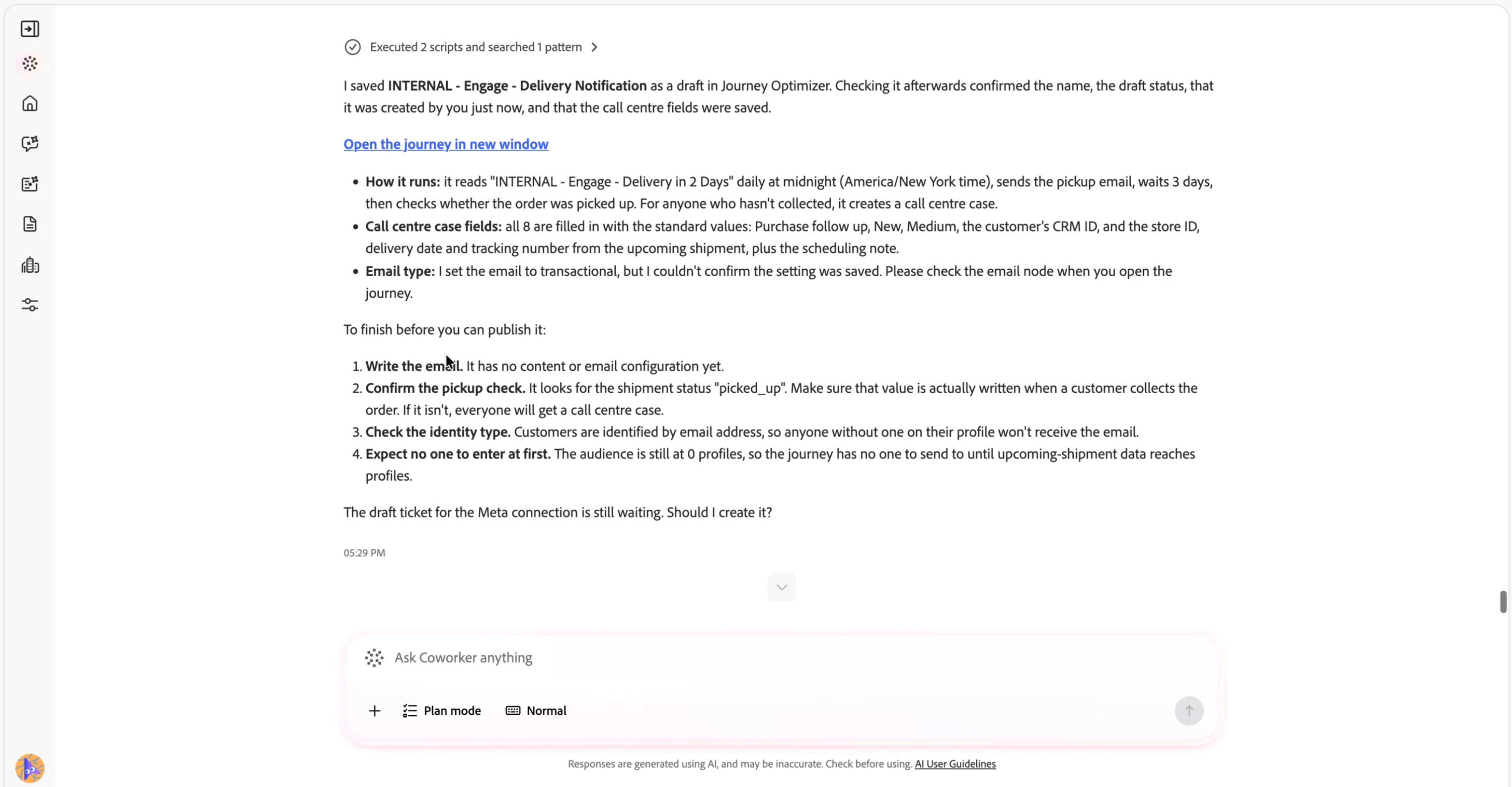
Finally, click the link to open the journey and see how Coworker pieced it together.
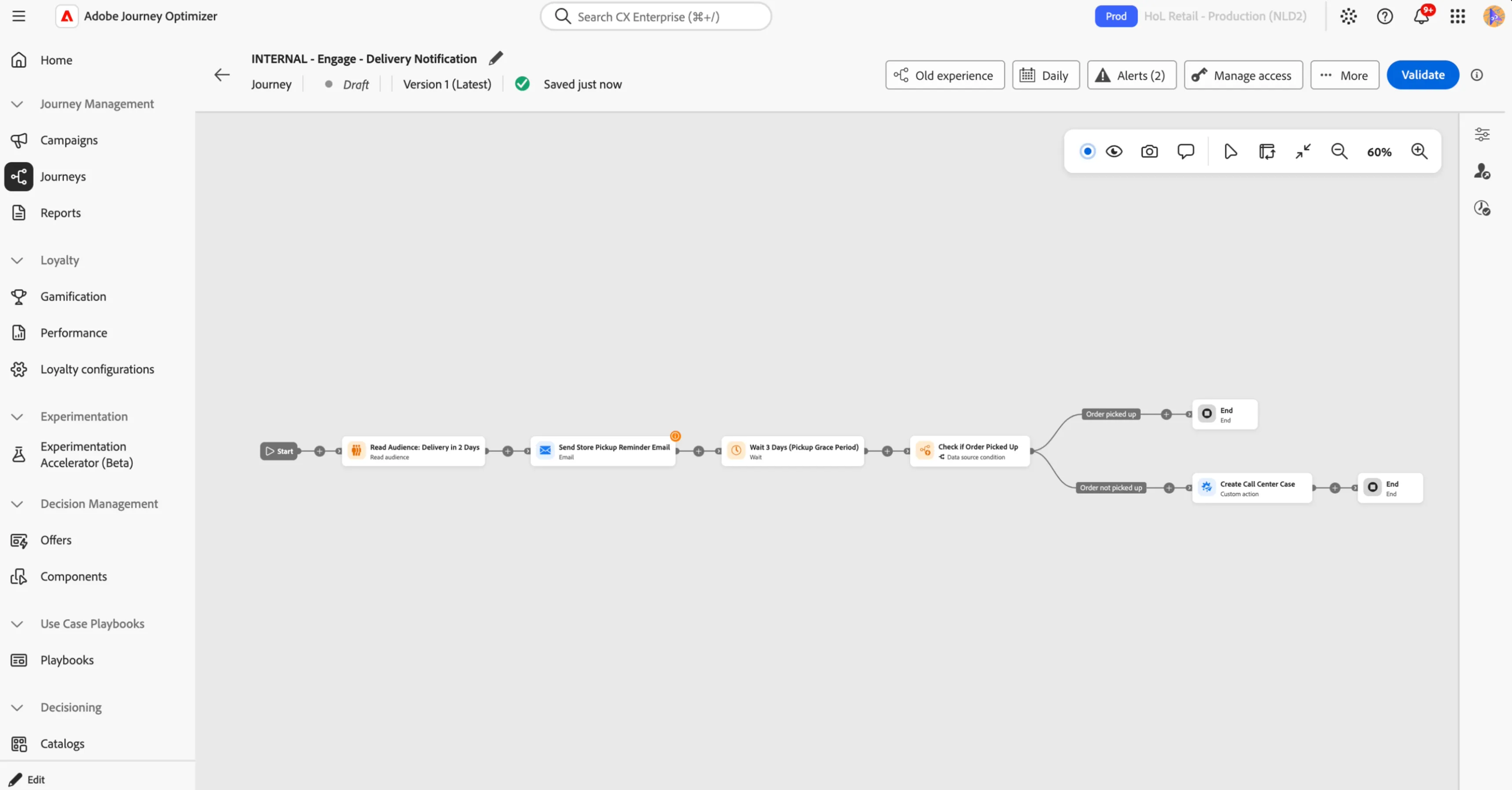
You've drafted an end-to-end journey from a single prompt — grounded in Luma's business context, with the audience trigger, the wait on the Pickup Grace Period, and the call centre action all wired together. From here you'd finish configuring the details (such as the email content) before publishing, but the full structure is already in place.