First steps with CX Coworker Chats
Before we get started!
Data may have changed and Coworker can interpret requests differently sometimes, so don't panic if your results do not match exactly what you see in this guide. Take your time to read and understand the results. Put your hand up for assistance if you get stuck.
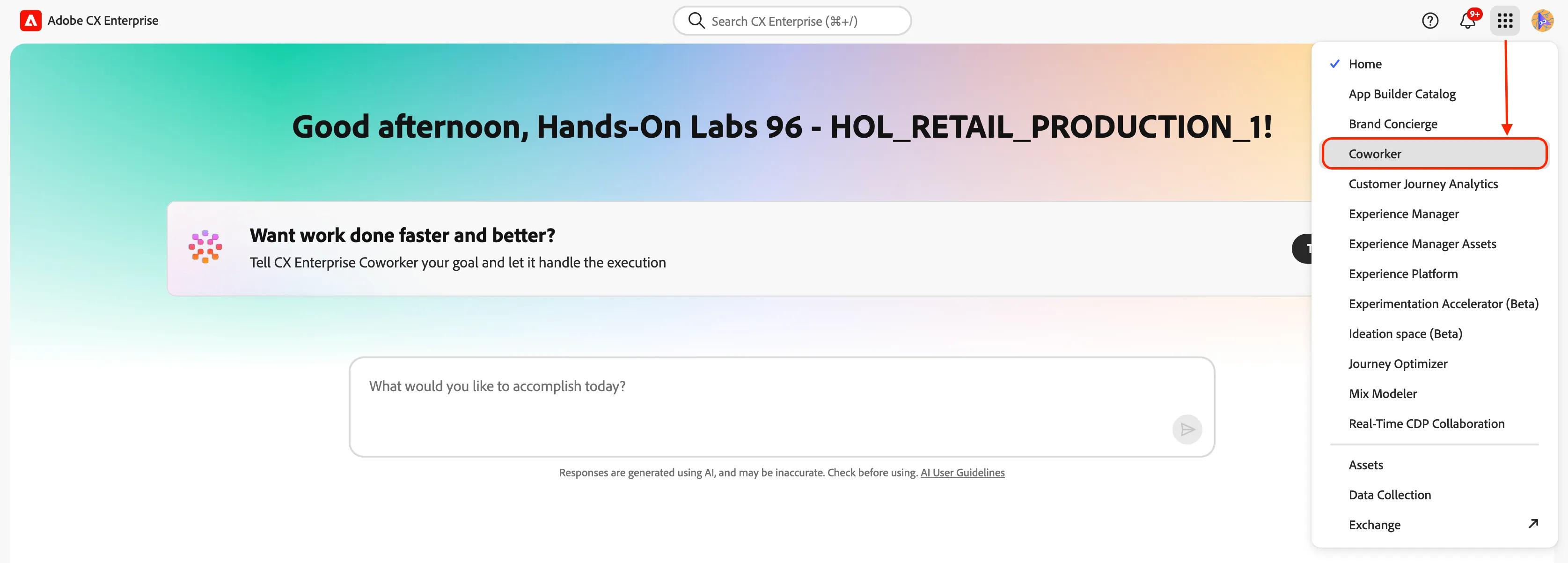
Access Coworker and set your sandbox
Access Coworker via the  icon and select Coworker from the list.
Explore the prompt library
Open a new chat. Above the prompt input you'll see example prompts from the prompt library.
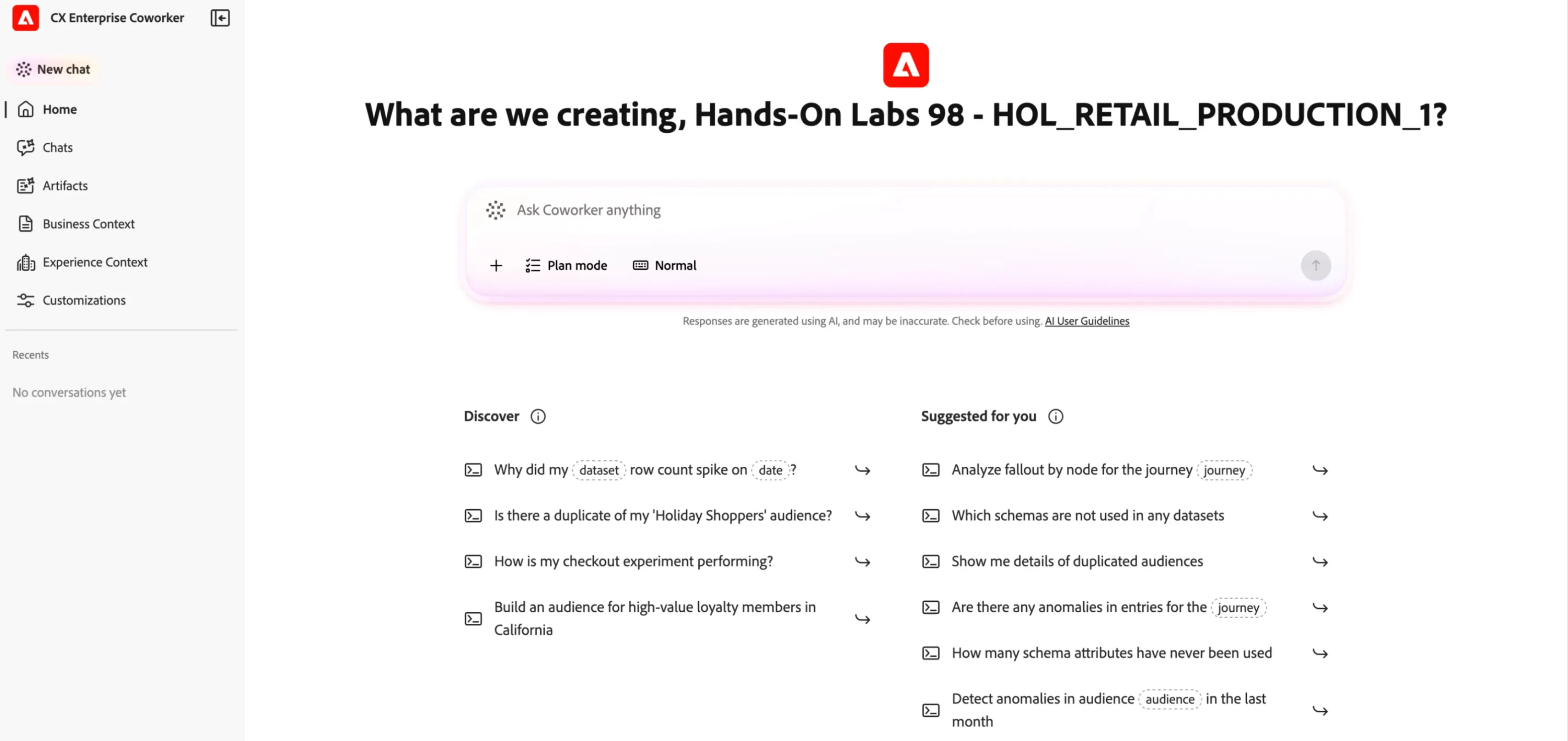
This is a set of suggested prompts you can use to start exploring what Coworker can help you with. Skip it for the moment.
Choose how much Coworker shows you
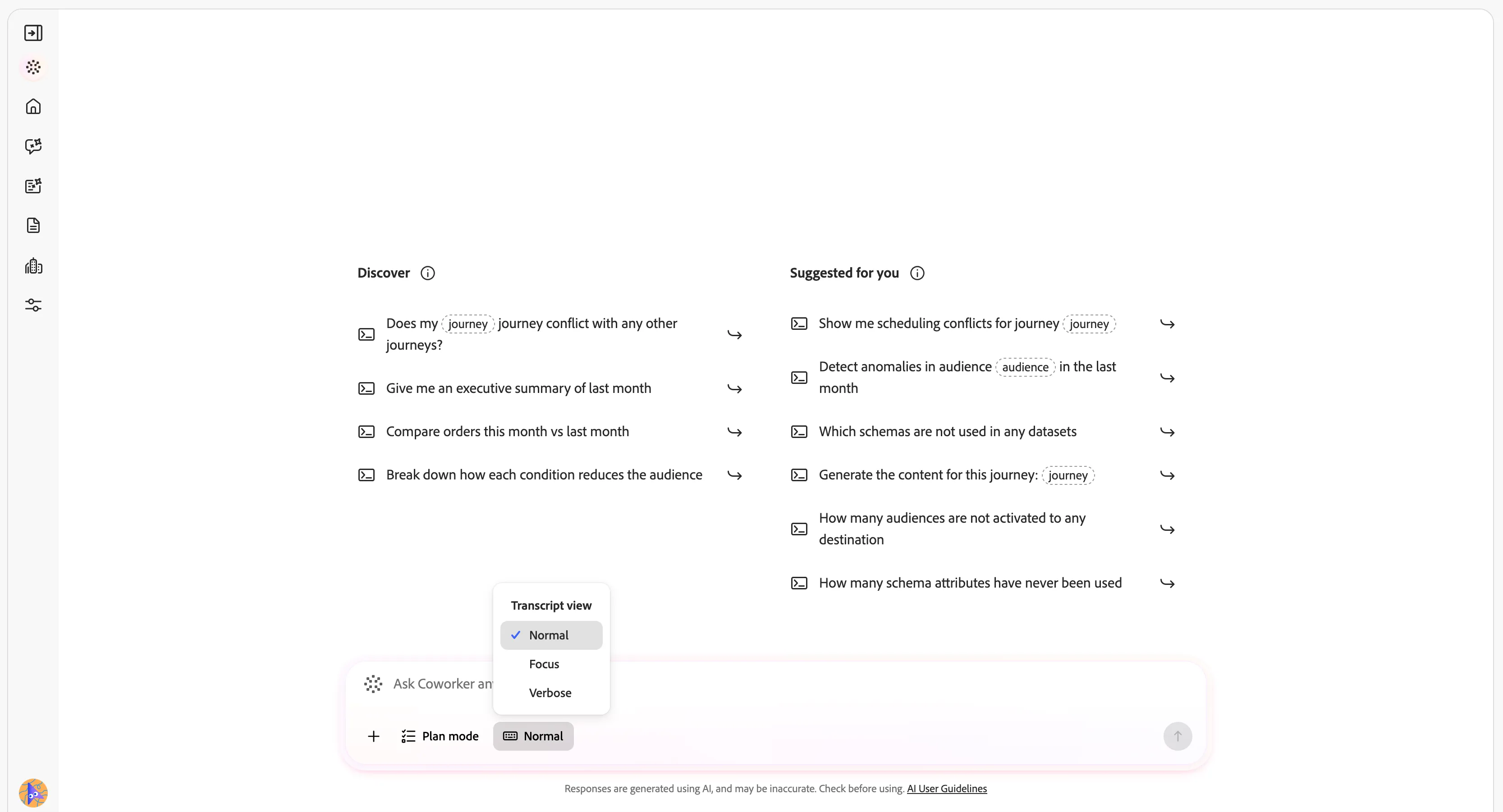
Coworker lets you control its verbosity — how much of its reasoning process it shows while it works through a task. There are three levels, and you can switch between them depending on how much detail you want to see:
- Normal: a balanced view of Coworker's steps and results.
- Focus: a minimal view that surfaces mainly the outcome, with less of the intermediate reasoning.
- Verbose: the fullest view, showing Coworker's detailed thought process as it works.
Pick the level that suits you. For this lab, Normal or Verbose are the most useful, since seeing Coworker's reasoning helps you understand how it interprets each prompt.
Tour the Customizations screen
Navigate to the Customizations screen from the left-hand menu, then move through each tab:
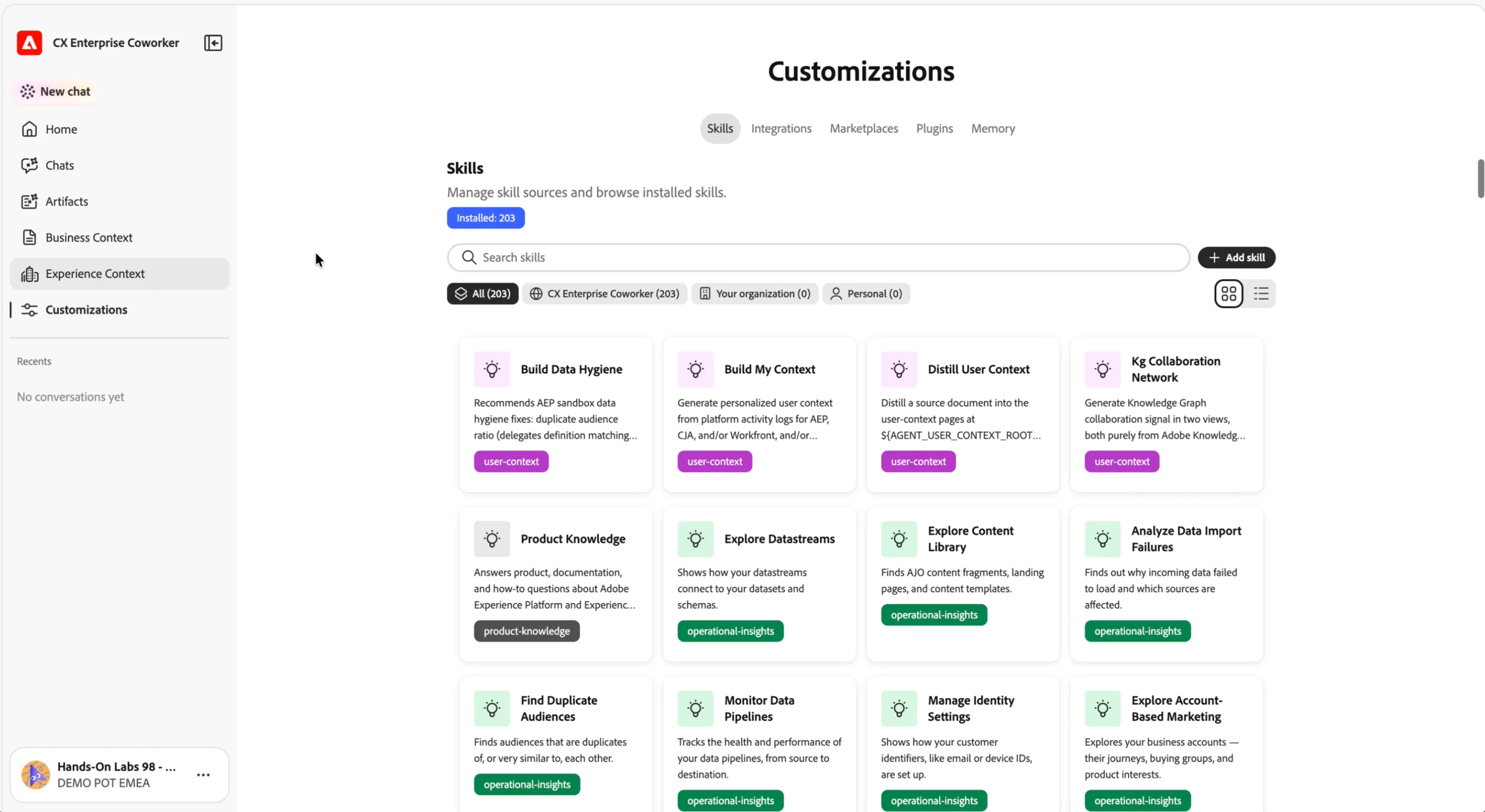
Skills: the reusable "playbooks" Coworker invokes automatically when relevant, or that you can trigger yourself with / in chat. You can write your own skills to extend the list.
Integrations: connects Coworker to external tools/services (e.g. Jira, Microsoft Dynamics, Figma). You can add a server to connect a new tool/service.
Marketplaces: registries you can browse and install plugins from.
Plugins: bundles of skills + MCP servers installed and managed together as a unit.
Memory: lets Coworker remember preferences across conversations.
Install the lab plugin
As we saw a moment ago, you can extend Coworker with custom skills and connections based on what you need. For this lab we've prepared a set of skills that support the exercises you're about to run — let's see how to install them.
- Go to the Marketplaces tab.
- Click + Add marketplace.
- Fill the form with these values:
- GitHub Repository: OneAdobe/techval-labs-marketplace
- Branch: cxo-lab
- Name: cxo-lab-plugins
- Click Add. A new card appears in the list.
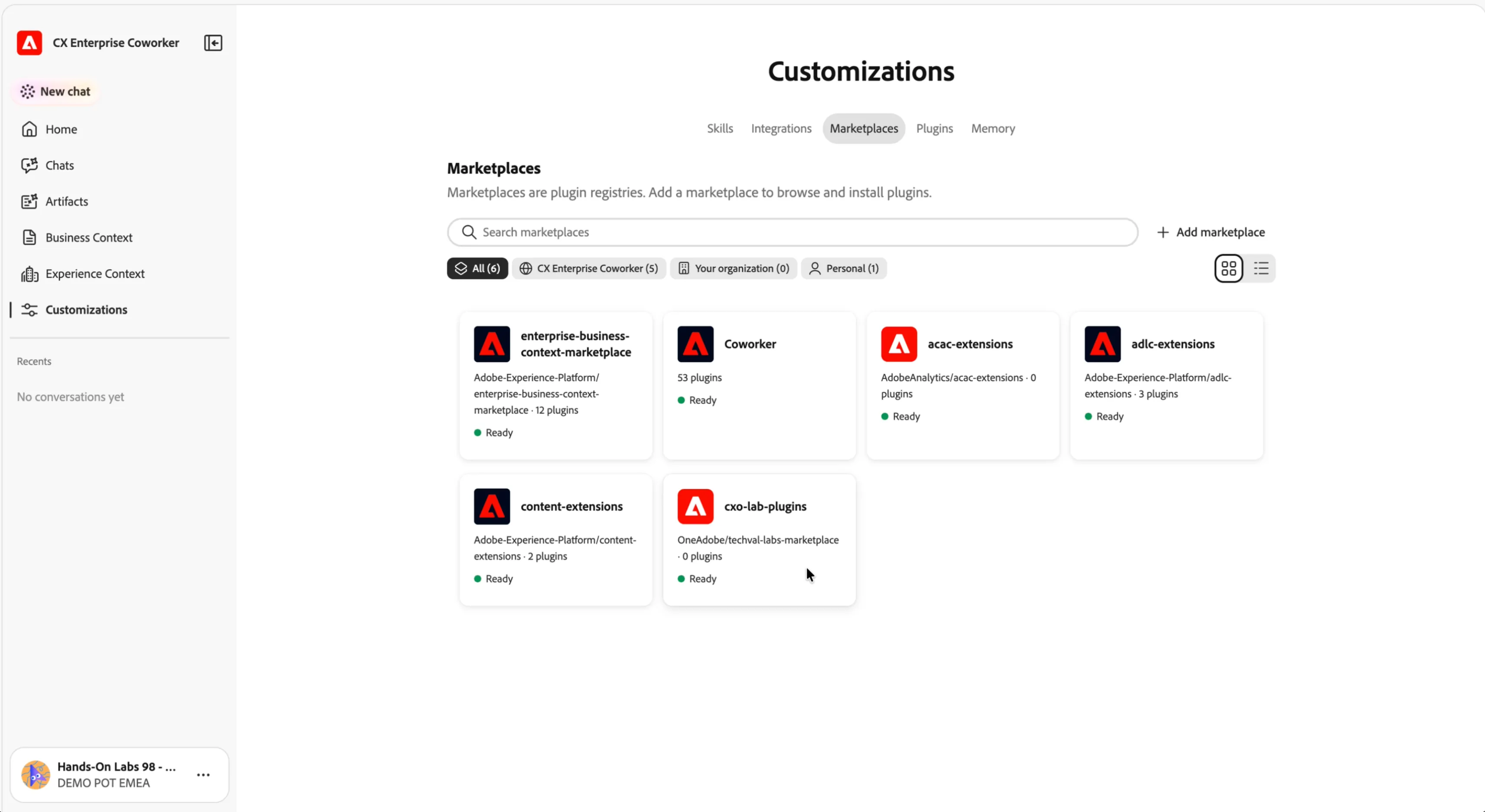
This plugin bundles the skills used throughout this lab. Installing it now means Coworker has everything it needs for the later exercises — including a capability you'll only use towards the end of the lab.
The scope of this item is personal, only visible and available to you.
- Click on the card cxo-lab-plugins to see the details: it contains one plugin.
- Click on cxo-lab and then Install; all the skills in the plugin are now installed and available.
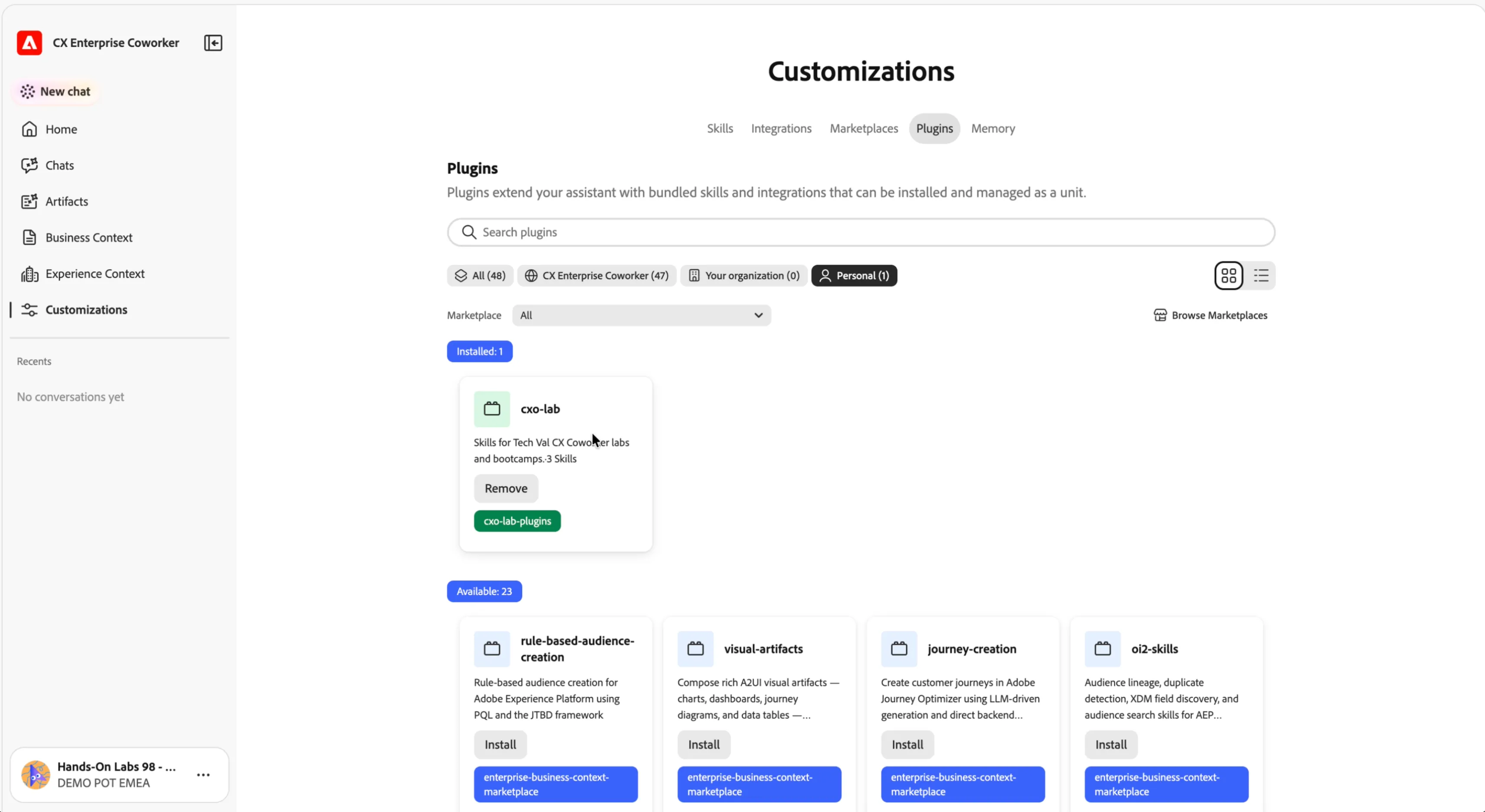
- Head back to the Plugins tab and click on Personal; you should see the cxo-lab plugin installed.
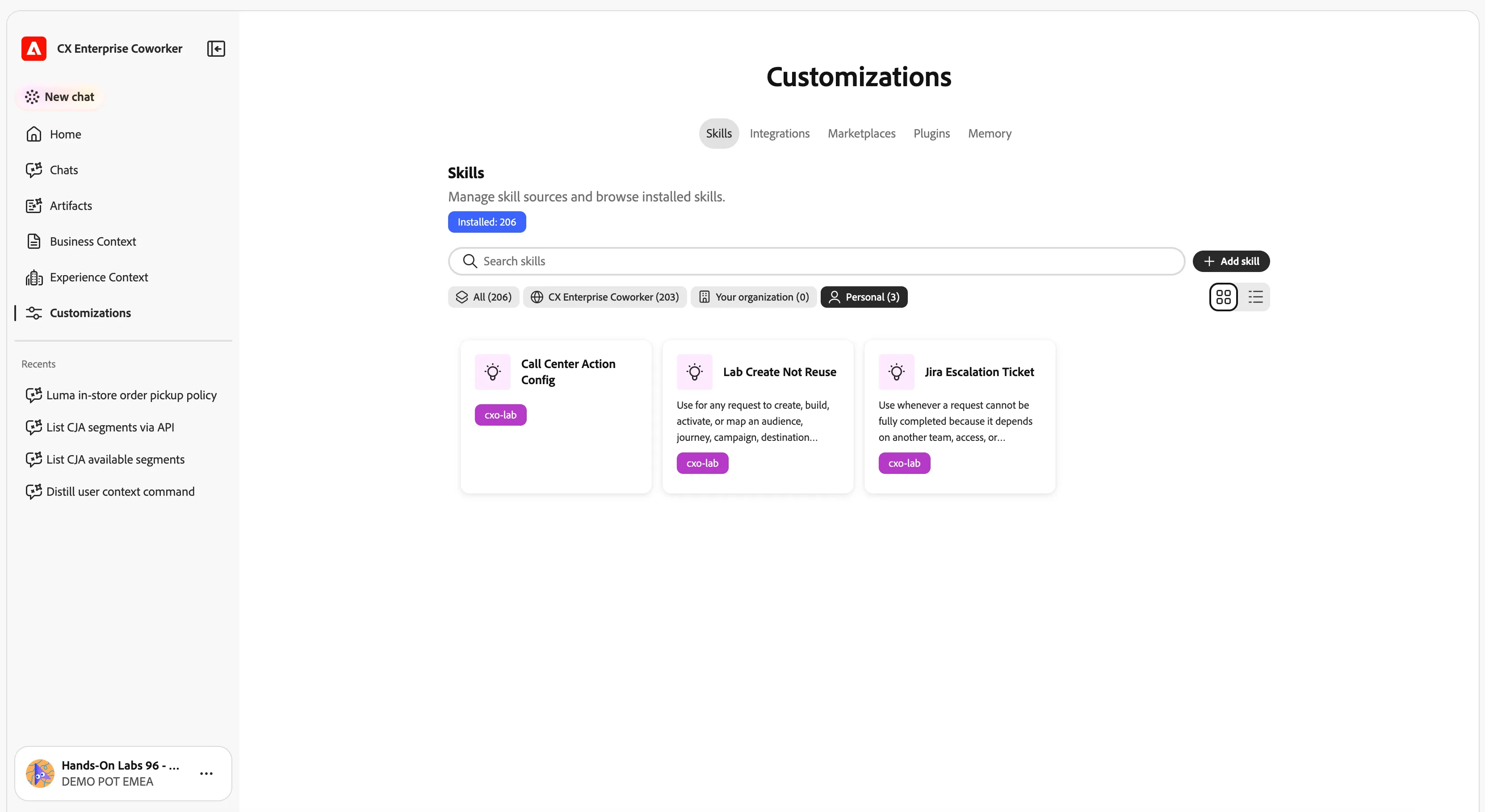
- Go to Skills and check that now you have 3 Personal skills installed.
Now that you are familiar with Coworker's UI and thought process, and the lab plugin is installed, you are all set for the next exercise.