Creating the journey
Story so far
The traveler has an upcoming flight in the next days. You now complete the journey that orchestrates timely and personalized messages — from pre-trip information and ancillary offers, to check-in reminders across channels — ensuring a seamless and consistent experience.
Journey overview
To get an overview of all journeys in Adobe Experience Platform:
- In the menu on the left side, under Journey Management, click on Journeys.
Finalise the journey
Duplicate the journey
To speed up the exercises, the team has already created a journey. Your task now is to duplicate it and complete the missing bits.
Locate the [Example] Engage - Check in open notification journey. Click on the three dots button next to the journey's name and then click on the Duplicate option. You'll be prompted with a message to choose the name of your journey.
- Set the name to [{{LASTNAME}}] - Engage - Check in open notification.
- Find your journey in the list and click on its label to open the journey canvas.
Since the journey is already prebuilt, explore each node.
Audience Qualification
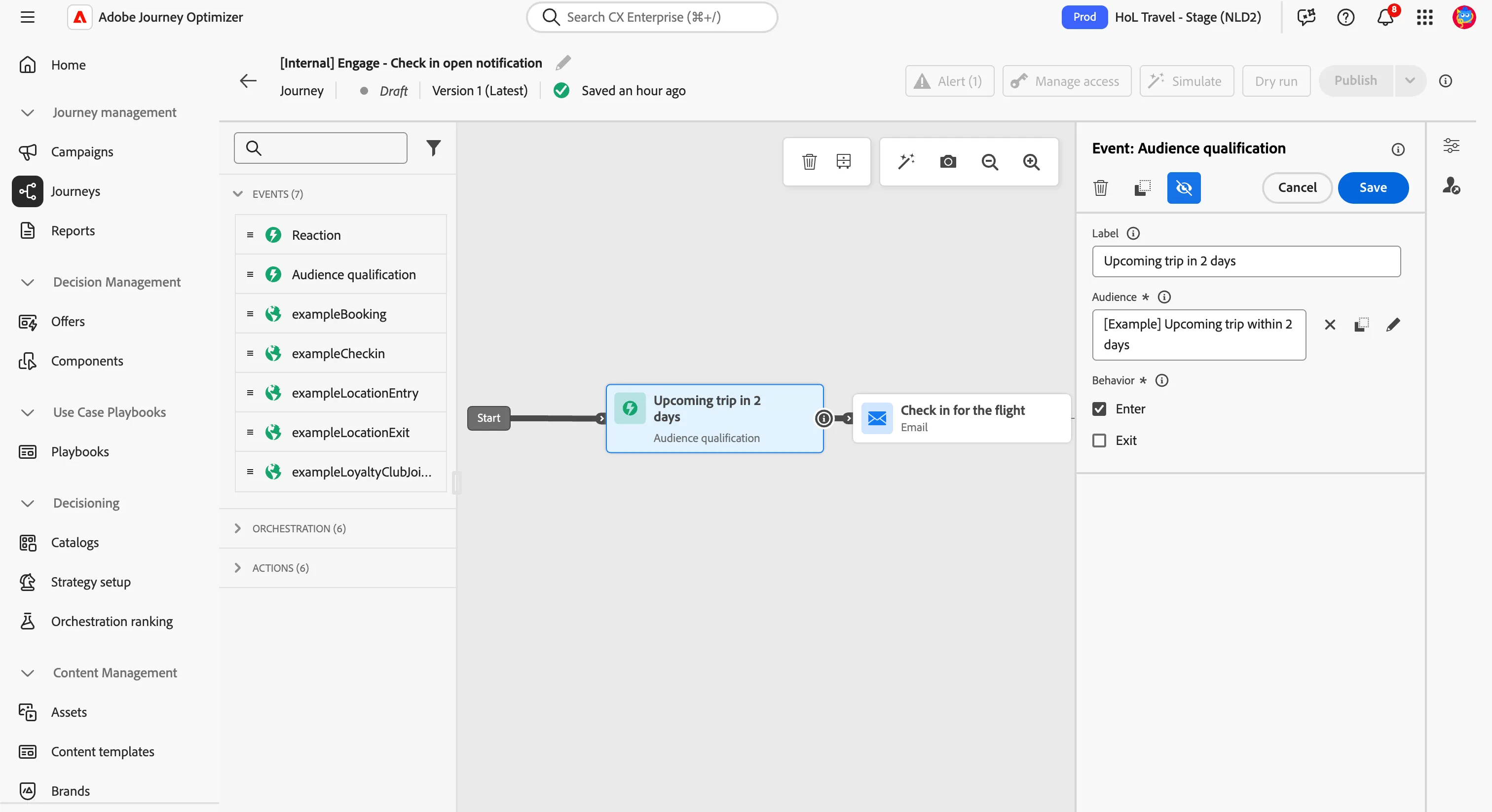
The journey starts with an audience qualification entry trigger.
- Click on Delivery in 2 days to open the detailed view.
- Audience is set to [Example] In store delivery within 2 days.
- The behavior is set to Enter. This means the journey will start as soon as the customer qualifies for the audience.
- The namespace is set to ECID (ECID).
- Your screen should look like the image below.
- Click Cancel to close the panel.
Email - Check in for the flight
The email is partially built. You have to complete some parts to make it fully work.
- Click on the Pick up your Items activity to open the detailed view.
- Click on Configure action.
- Enable Send time optimization, choose to Optimize send time for Opens and set it to send within next 6 hours.
Adobe Journey Optimizer’s Send-Time Optimization feature, powered by Adobe’s Journey AI services, chooses the optimal send time for email and push messages to maximize customer engagement, based on your customers’ historical open and click behavior.
- Click on Edit content to finish designing your email.
- Click on Edit email body.
The email designer will now open. It should look like this:
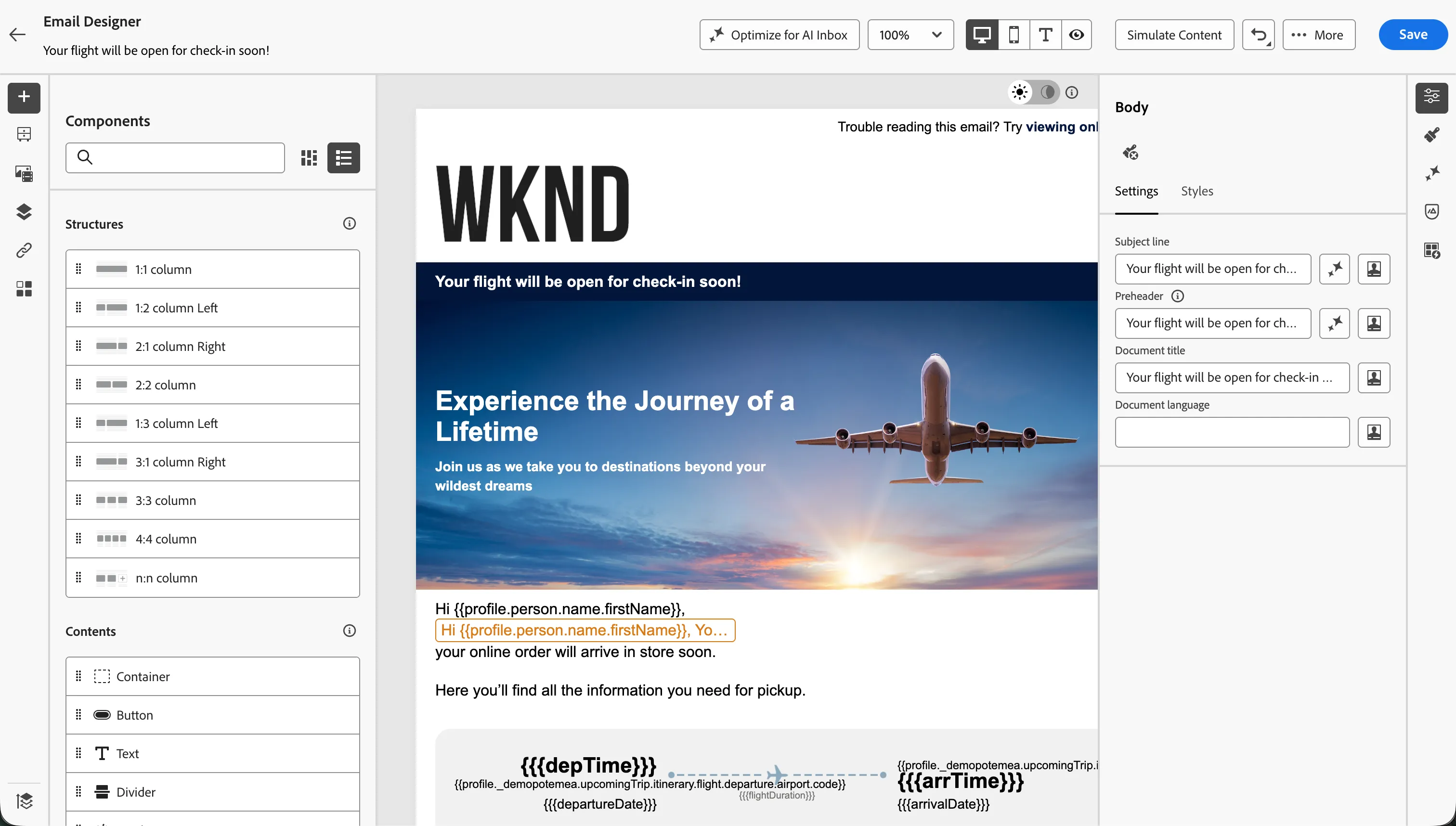
Most of the content are prebuilt into the email. You have to customise the email for journey with personalised Post-sales offers.
(to review) Improve the content with Gen AI variations
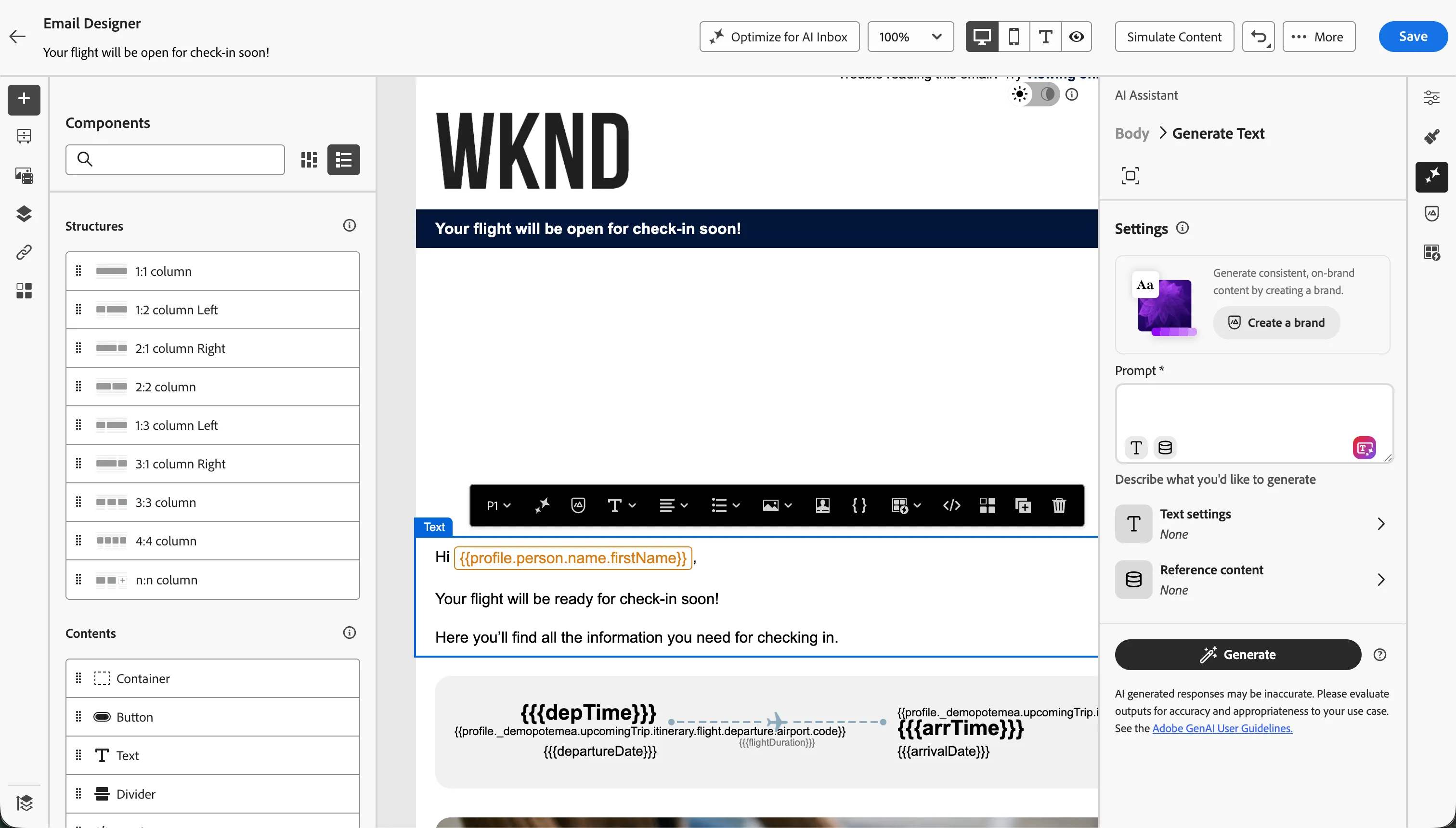
Ask the AI Assistant for improvements:
- Select the block of text below the image.
- In the right panel, click on the AI Assistant icon

- Click on the Fullscreen icon
 to maximize the window
- Click on the Brand alignment tab
- Click on the Evaluate score button to get the Brand alignment score and scroll down to see what could be improved. Click on Writing style (low) to see the brand violations. Then go back with the
 button.
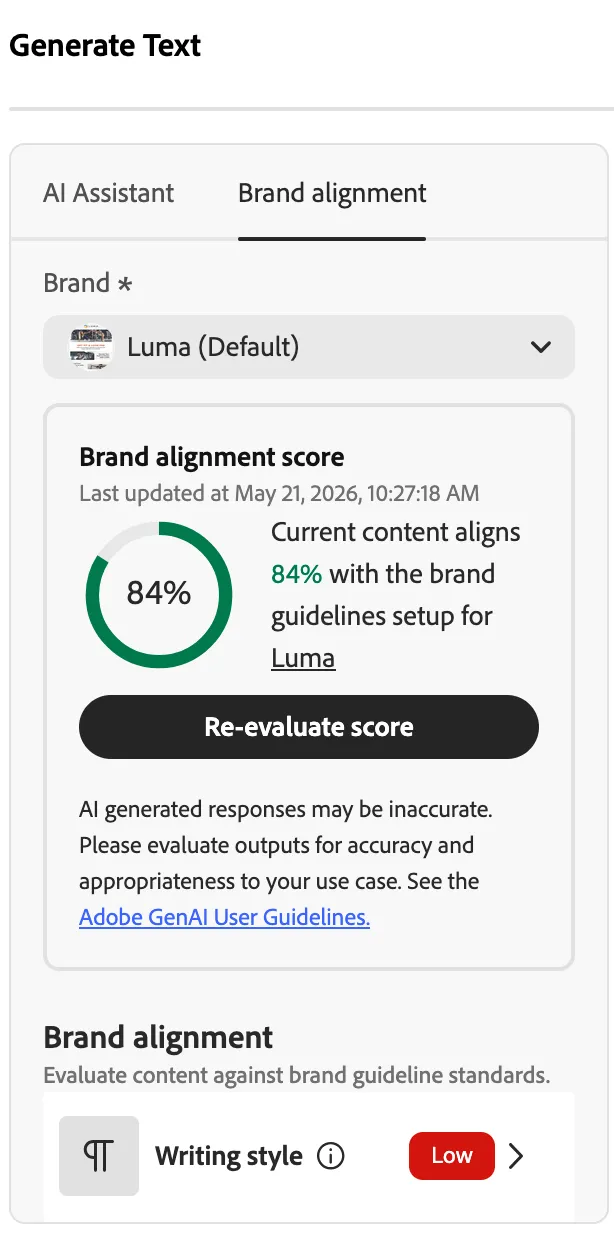
- Click on the AI assistant tab
- The Luma brand should already be selected
- Try this prompt
- Set Text settings to
- Communication strategy: Informative
- Language: English
- Tone: Exciting
- Click on Generate button and you should see couple of recommendations.
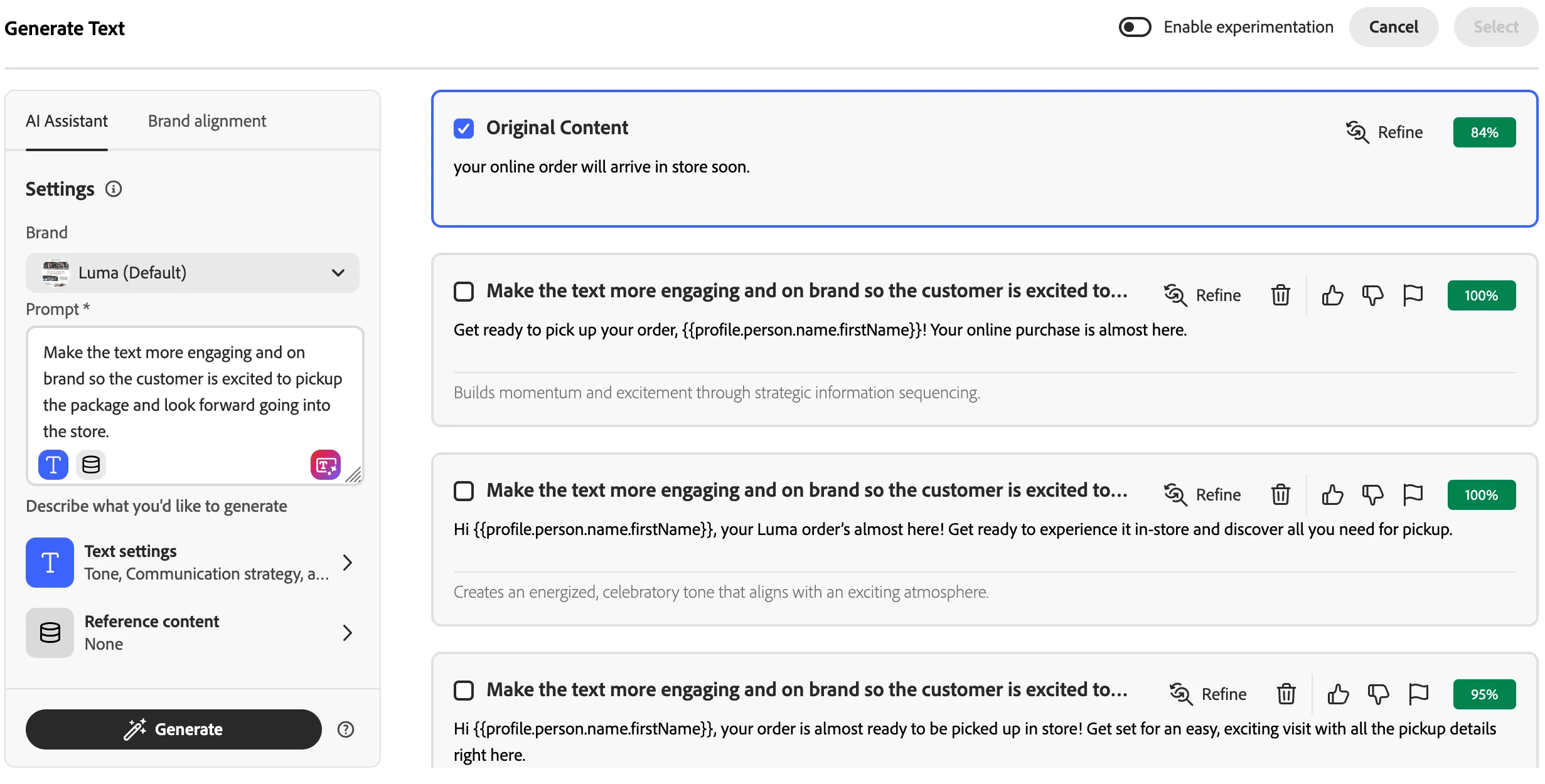
- Look at the variations, select one that increases the brand alignment score or make a feedback to refine. Click on the select button in the top right corner.
Include personalised offers
Scroll down to the bottom and click in the white space between the two cards. You'll see an orange border appearing with the label Repeat Grid.
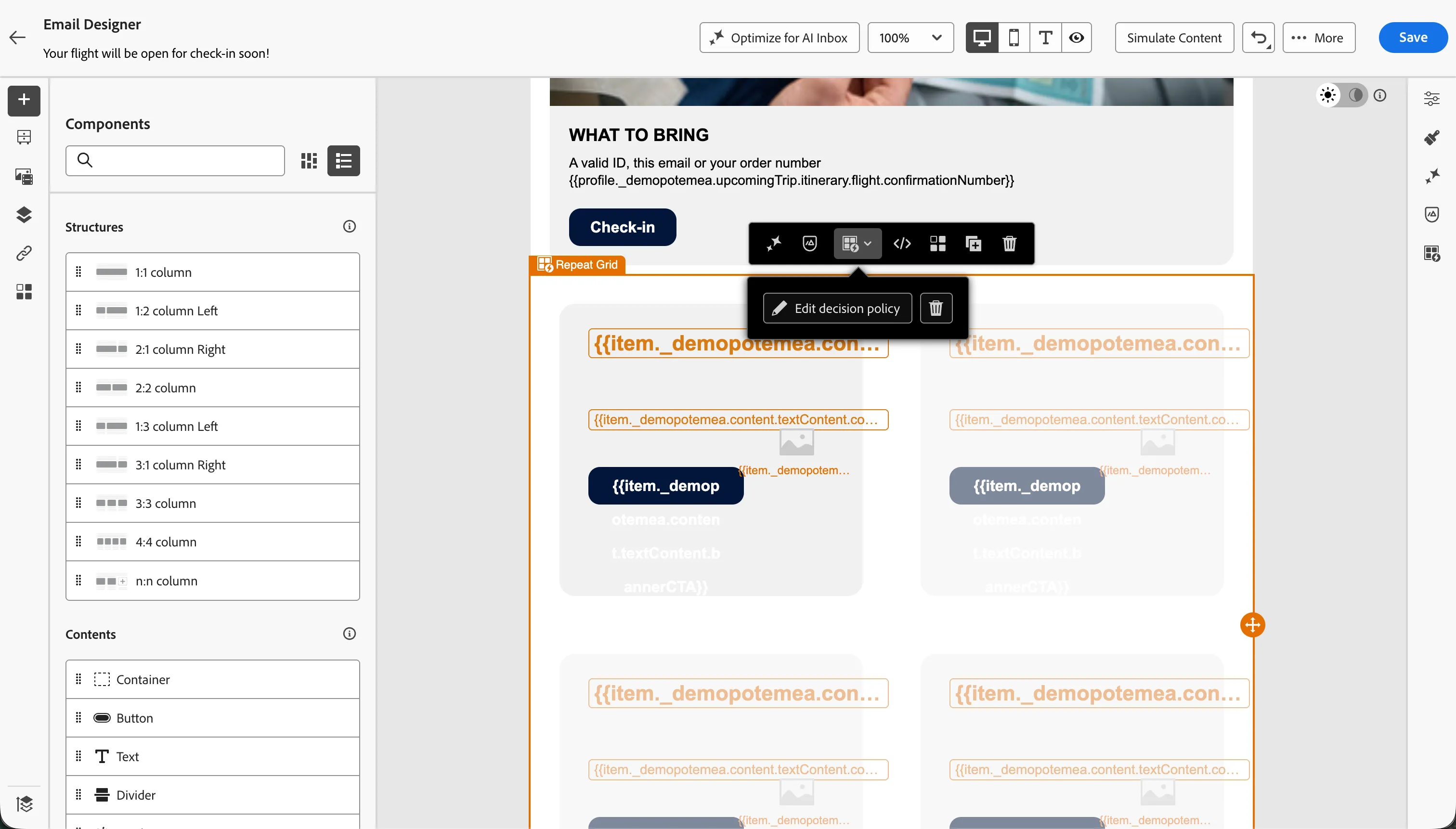
Repeat Grid lets marketers reuse one content pattern across multiple offers or items, making personalized emails faster, more consistent, and easier to scale. In the Repeat grid you configure one element and the it gets repeated for all the offers available in the Decision Policy.
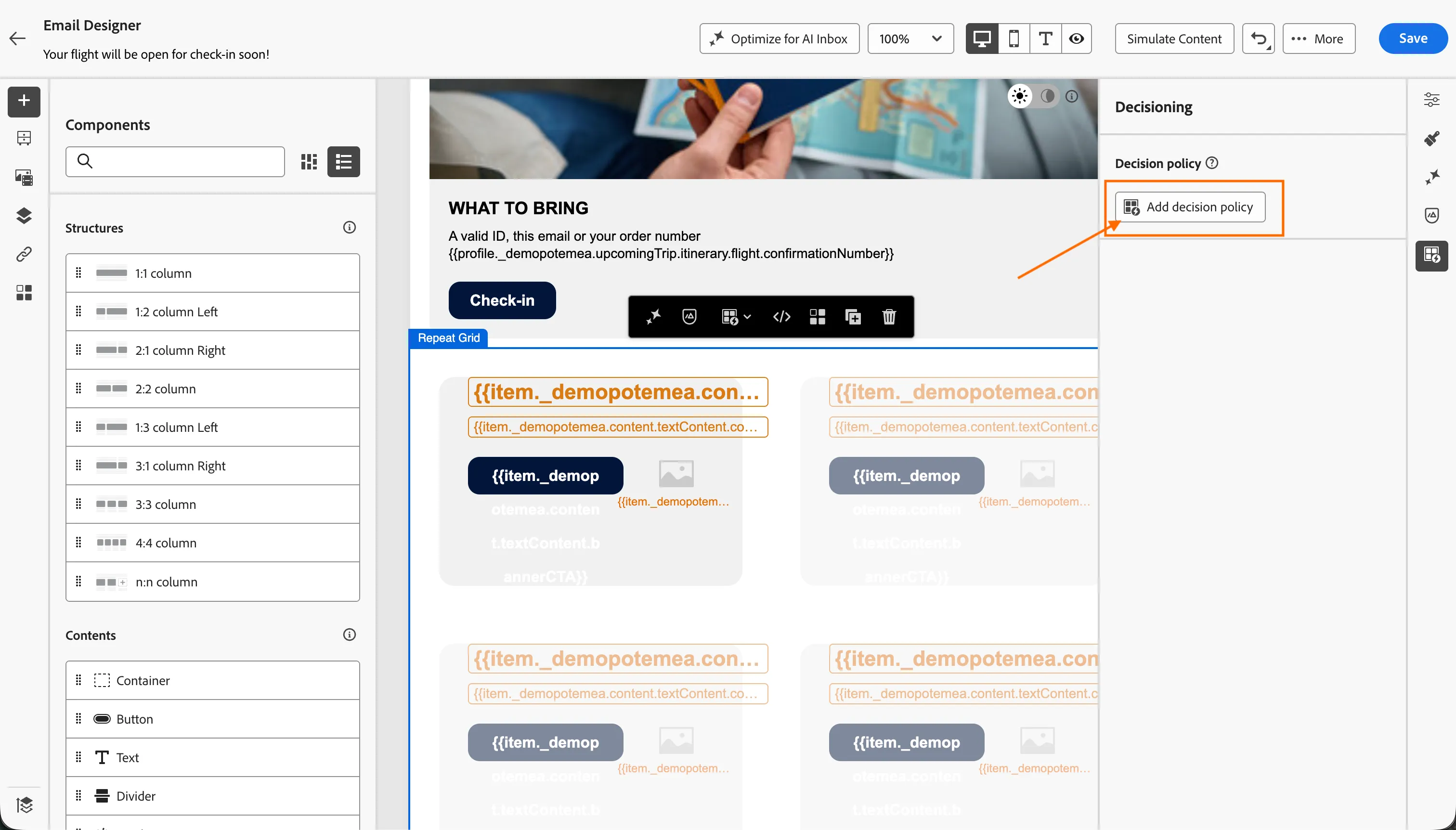
- Click the Decisioning icon from the right hand menu
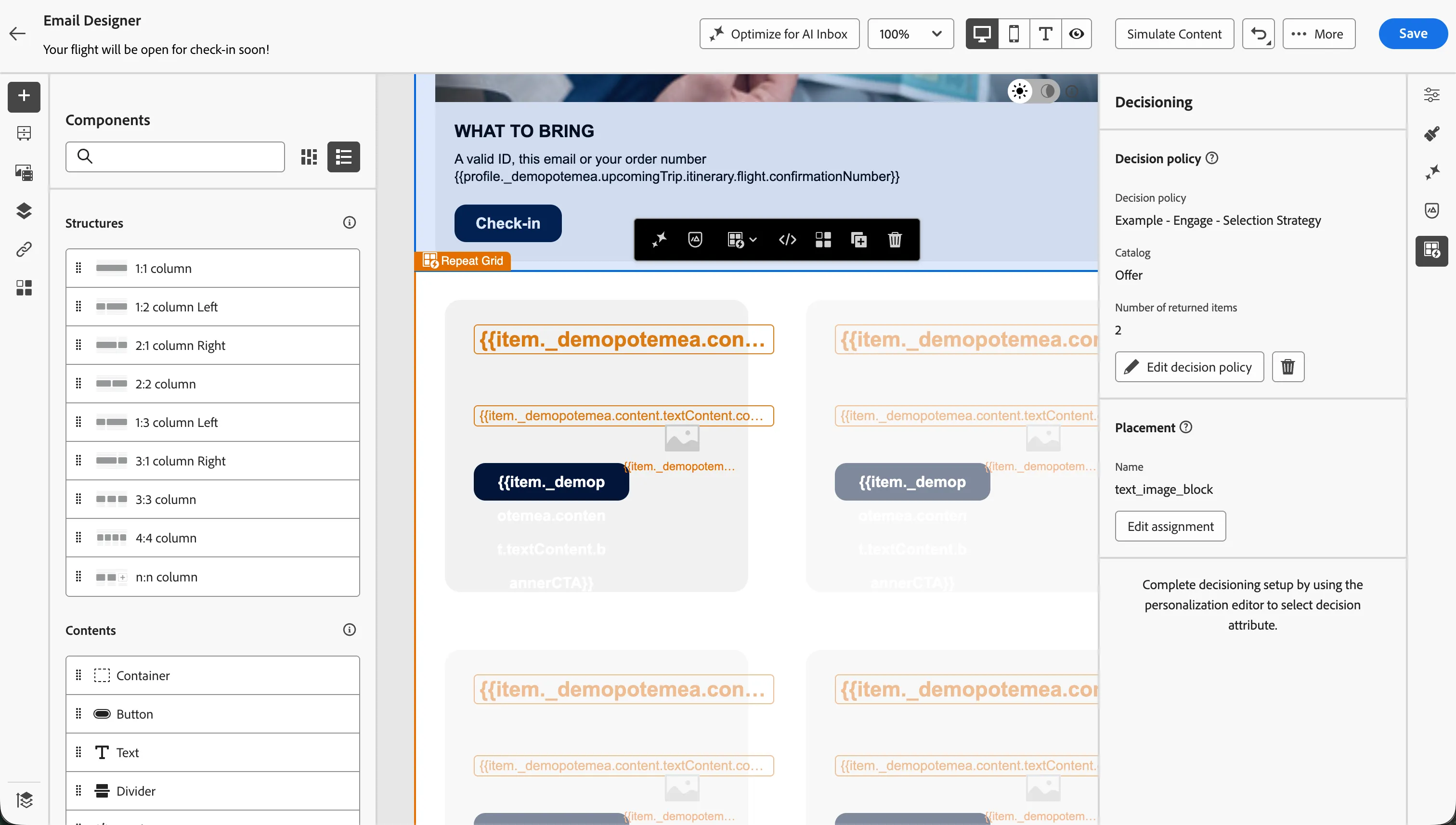
- Click Add Decision Policy >Add new policy
- Set the name of the decision policy to:[{{LASTNAME}}] Selection Strategy.
- Set the number of items to 2.
- Click Next.
- Under Strategy sequence, select +Add > Selection Strategy.
- Select the [Example]Engage - Selection Strategy from the list.
- Click Save to close the window.
- Click Next and review your decision policy.
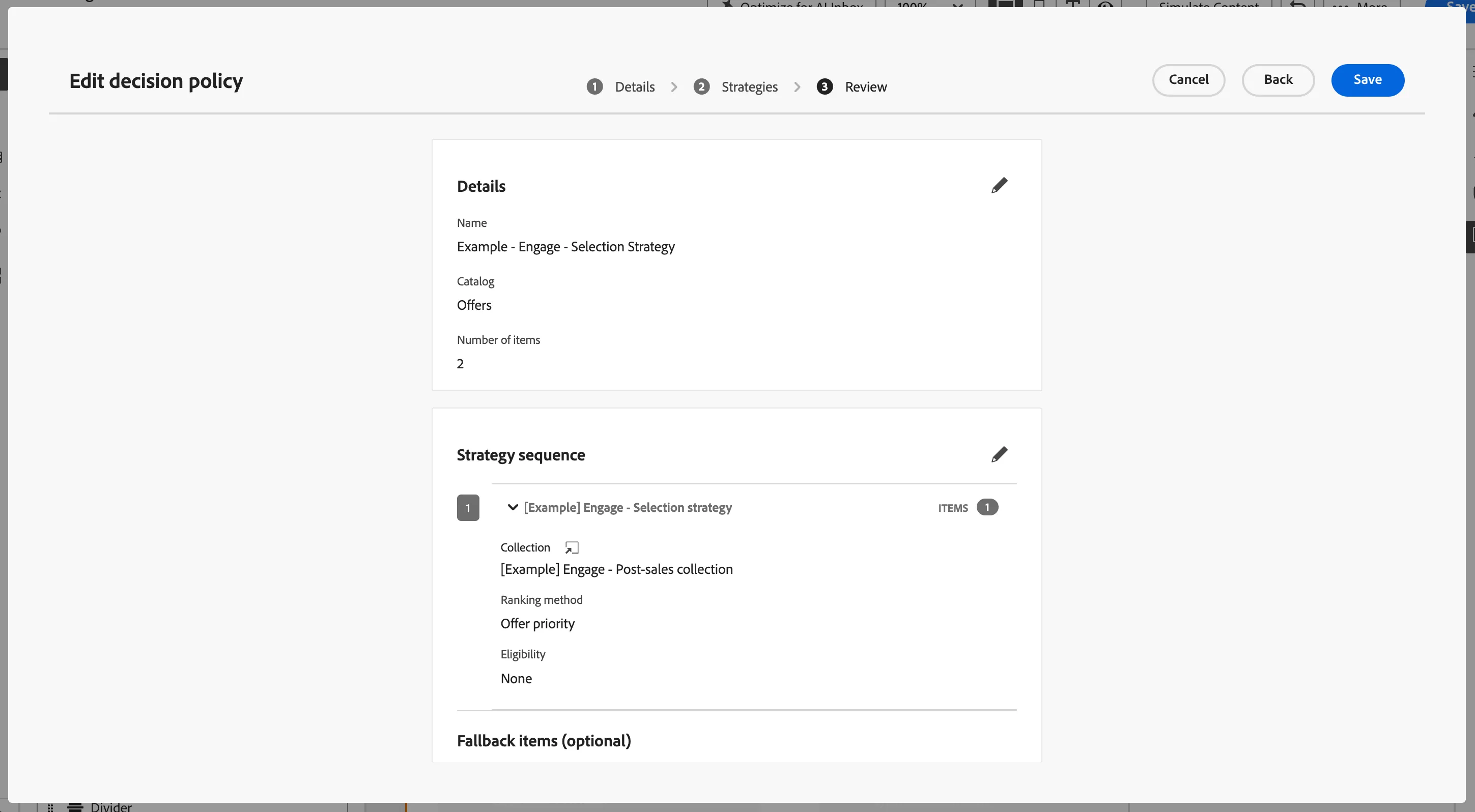
- Click Create.
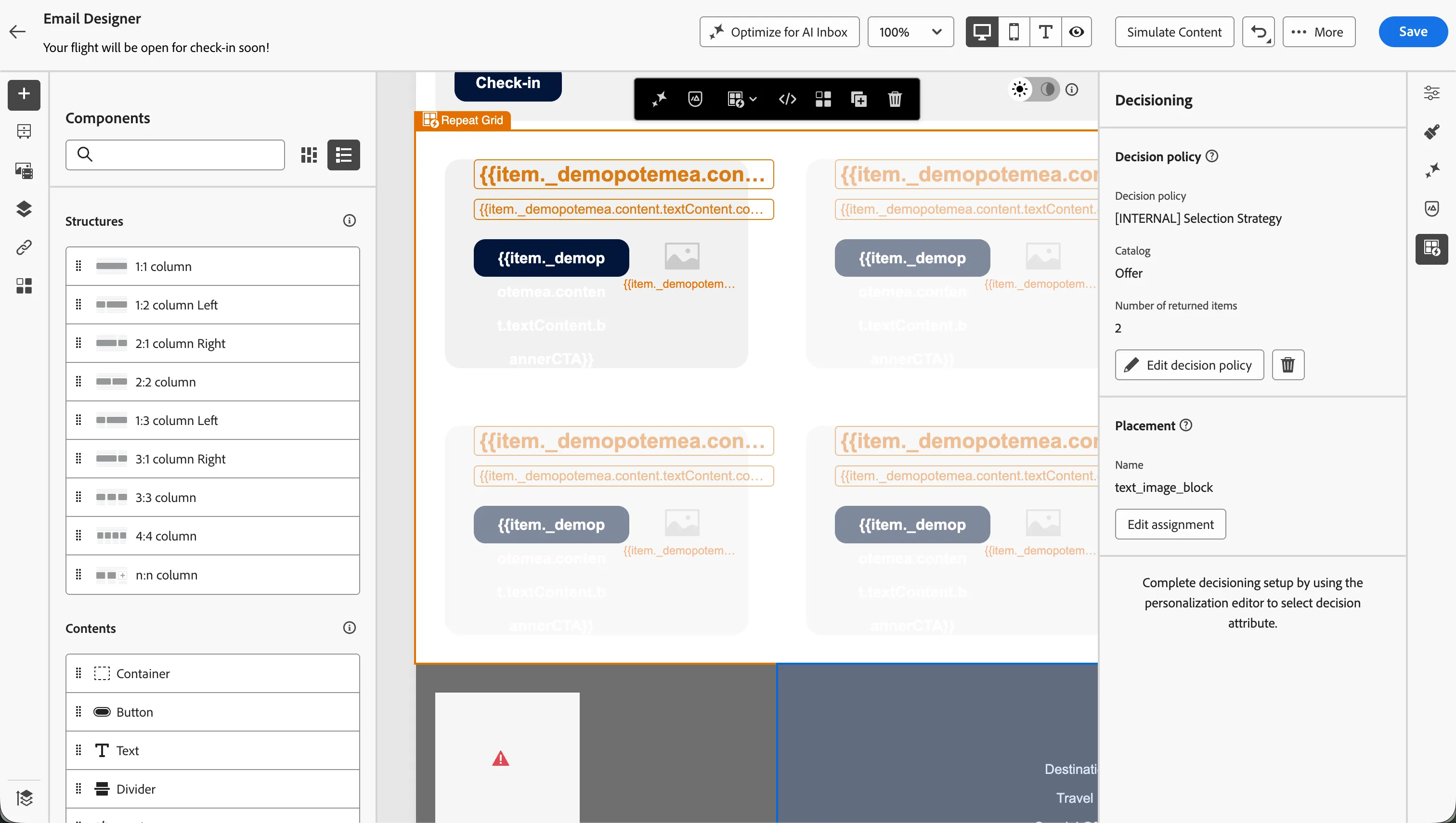
To use the decision policy in an email, you have to assign a placement.
- Click Assign Placement in the Decisioning panel.
- Check the text image block placement
- Click Assign.
With the decision policy assigned to the Repeat Grid block you can now use the offer fields to fill the fragment. Click on Settings icon to show the settings menu.
- Click the first image of the block.
- From the image settings on the URL, remove the Source URL by clicking the X.
- Click on the Source text box, type a white space to enable the personalisation menu.
- Click
 to open the personalisation editor.
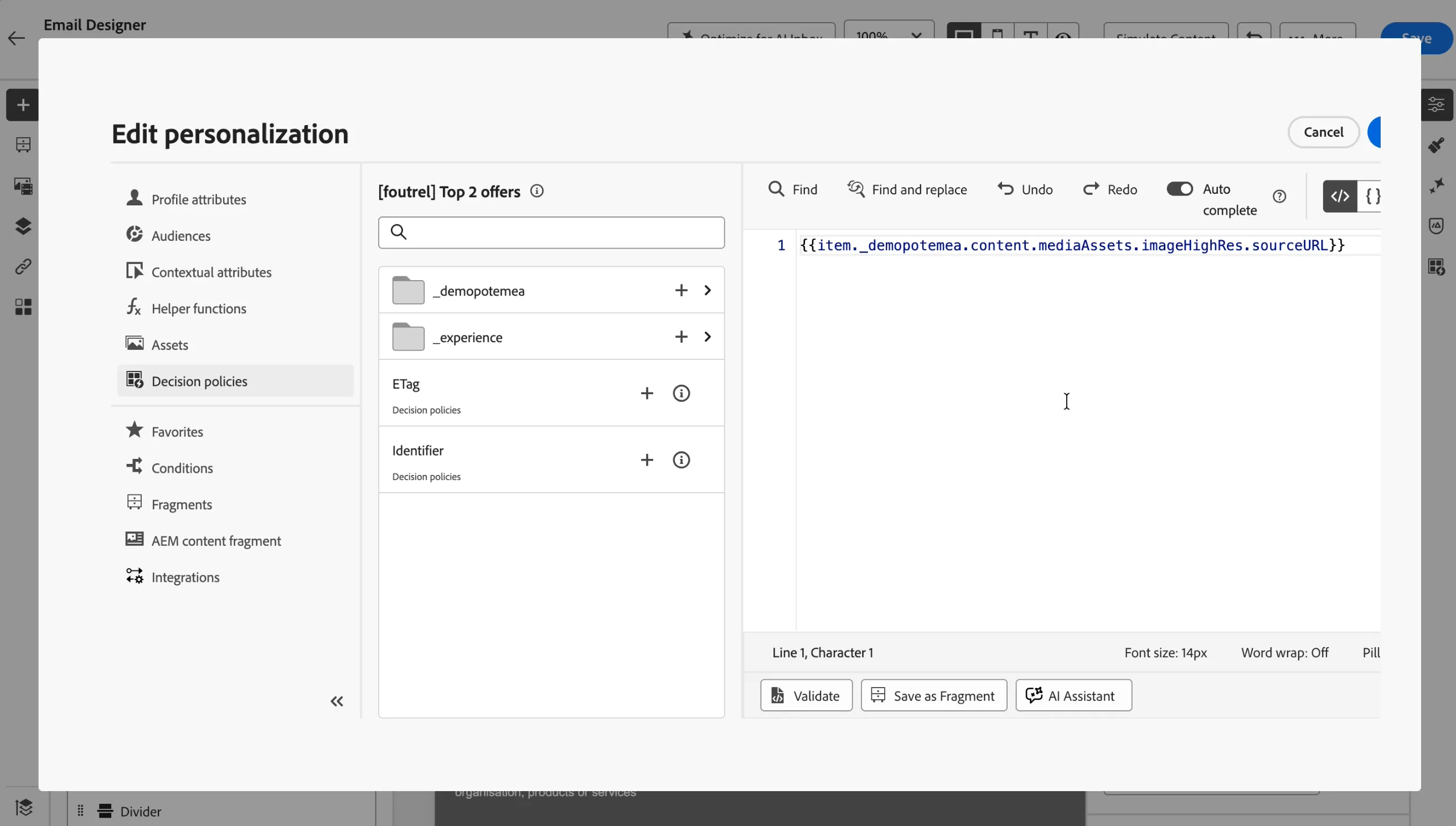
- On the left menu, click on Decision Policies.
- From the _demopotemea, go in the Offer Content > Media Assets > Image (High Resolution) folder and search for the sourceURL attribute.
- Click + to add the first attribute in the list into the expression editor.
You should see:
- Click Save.
When the email is sent, the decision policy retrieves the top two offers based, using the Selection Strategy rules, and will use the sourceURL to fill the image source.
Now you can repeat a similar action to configure the rest of the fields in the block.
Header
- Select the One line header text and click on
 in the top toolbar.
- Select Decision policies from the left menu.
- From the _demopotemea policy, go in the Offer Content > Text Content folder and search for the Compact Title attribute
- Click + to add the attribute in the list into the expression editor.
- Click Save.
Body
- Select the Description text and click on in the top toolbar.
- Select Decision policies from the left menu.
- From the _demopotemea policy, go in the Offer Content > Text Content folder and search for the Compact description attribute.
- Click + to add the attribute in the list into the expression editor.
- Click Save
Button
- Click on the Button.
- From the button options on the right-hand side panel, click on , next to the Url field to open the expression editor.
- Select Decision policies from the left menu.
- From the _demopotemea policy, go in the Offer Content > Navigation folder and search for the Web URLattribute.
- Click + to add the attribute in the list into the expression editor.
- Click Save.
- Now select the Button text and from the top toolbar click on the Add Personalisation icon to open the expression editor.
- Select Decision policies from the left menu.
- From the _demopotemea policy, go in the Offer Content > Text Content folder and search for the Banner Call To Action attribute.
- Click + to add the attribute in the list into the expression editor.
- Click Save.
Reminder! Now is a good time to Save your email (top, right Save button).
The personalization editor is the centerpiece of the personalization in Journey Optimizer. It is available in every context where you need to define personalization like emails, push and offers.
In the personalization editor interface, you can select, arrange, customize and validate all the data to create a customized personalization for your content.
In this case, the Banner image source URL will be replaced dynamically with an image of the most suitable meal deal combination for each customer that receives the email.
To find out more information, visit Adobe Experience League.
[Optional] Simulate Email Content
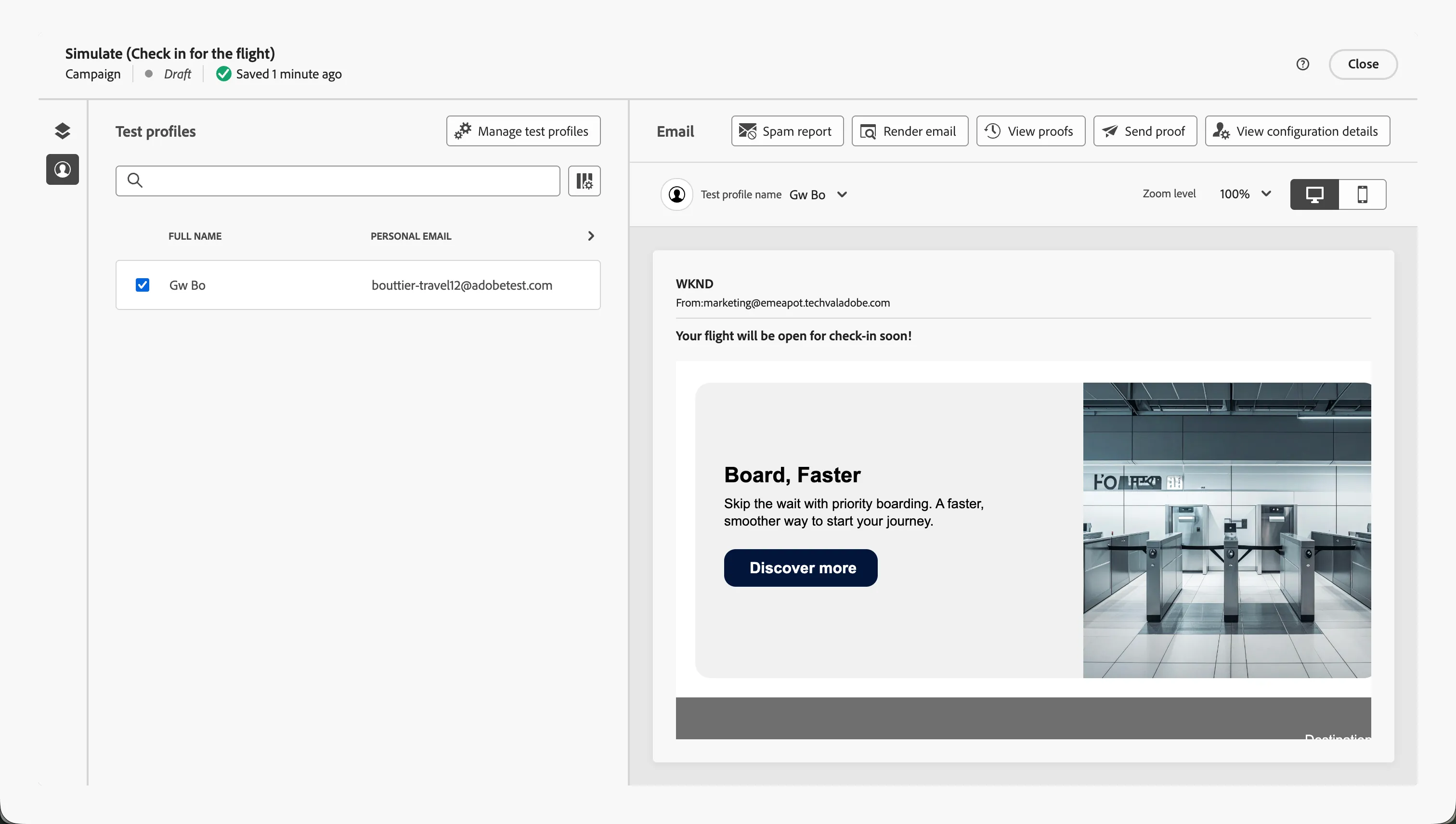
If you want to see how the Offer would render for a test profile with certain attributes, you can simulate content.
- Select Simulate Content > Simulate Content from the Email Designer
- Add a test profile that you want to simulate email content for.
- Click on Manage test profiles.
- In Identity namespace, click on
 .
.
- In Select identity namespace, click on Email, then click Select.
- In Identity value type the email address you used at the beginning of this lab.
- Click Add profile.
An example test profile rendering is:
- Click Close to return to the Email Designer.
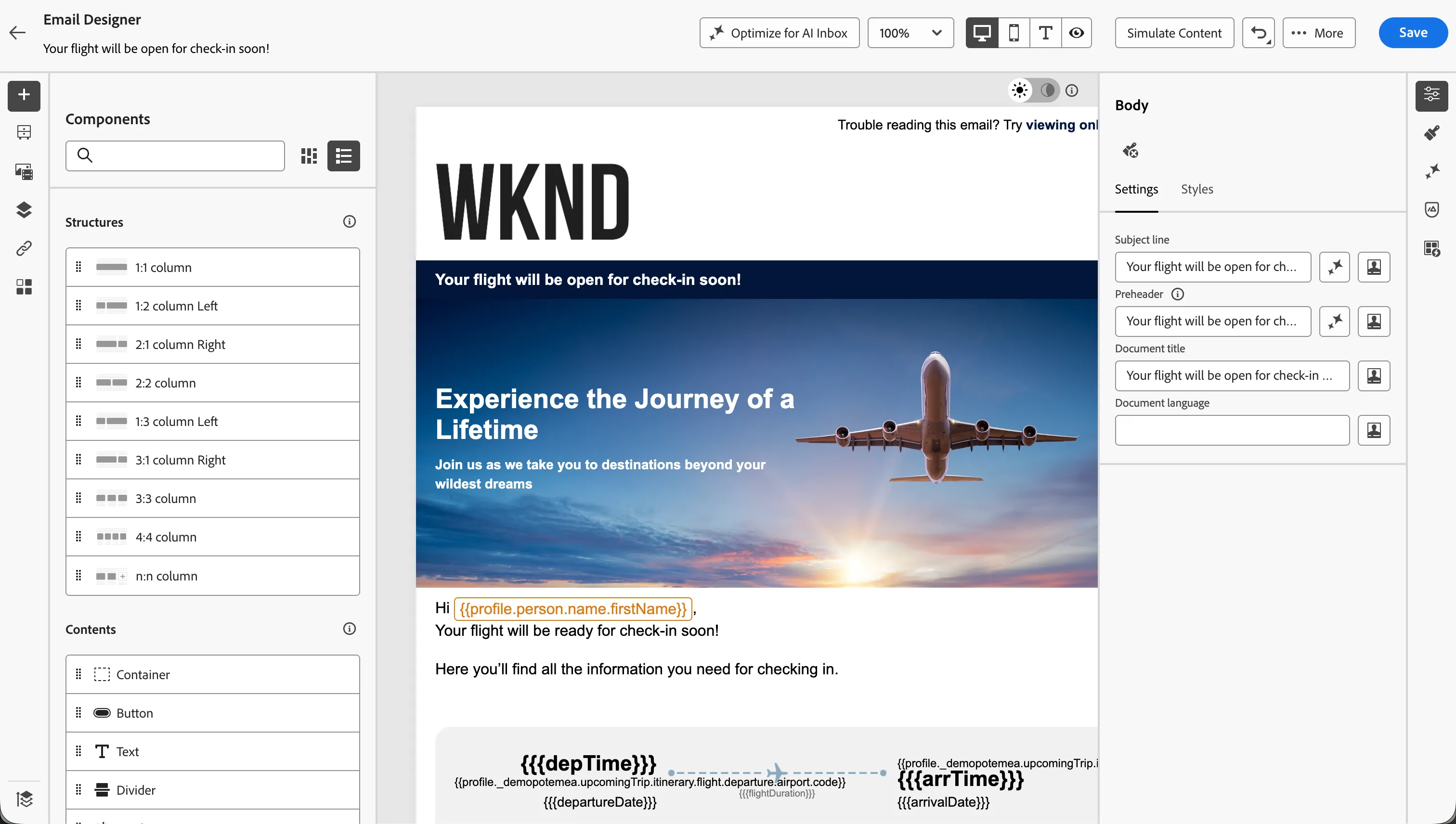
Your email should now look like:
- Click Save in the top right.
- Navigate out of the email designer by clicking the back arrow icon in the top left. You'll be taken to the messages overview for your journey.
- Navigate out of the messages overview by clicking the back < icon in the top left.
- You'll return to the Journey canvas. Click Save in the Actions: Email panel.
Your journey should now look like:
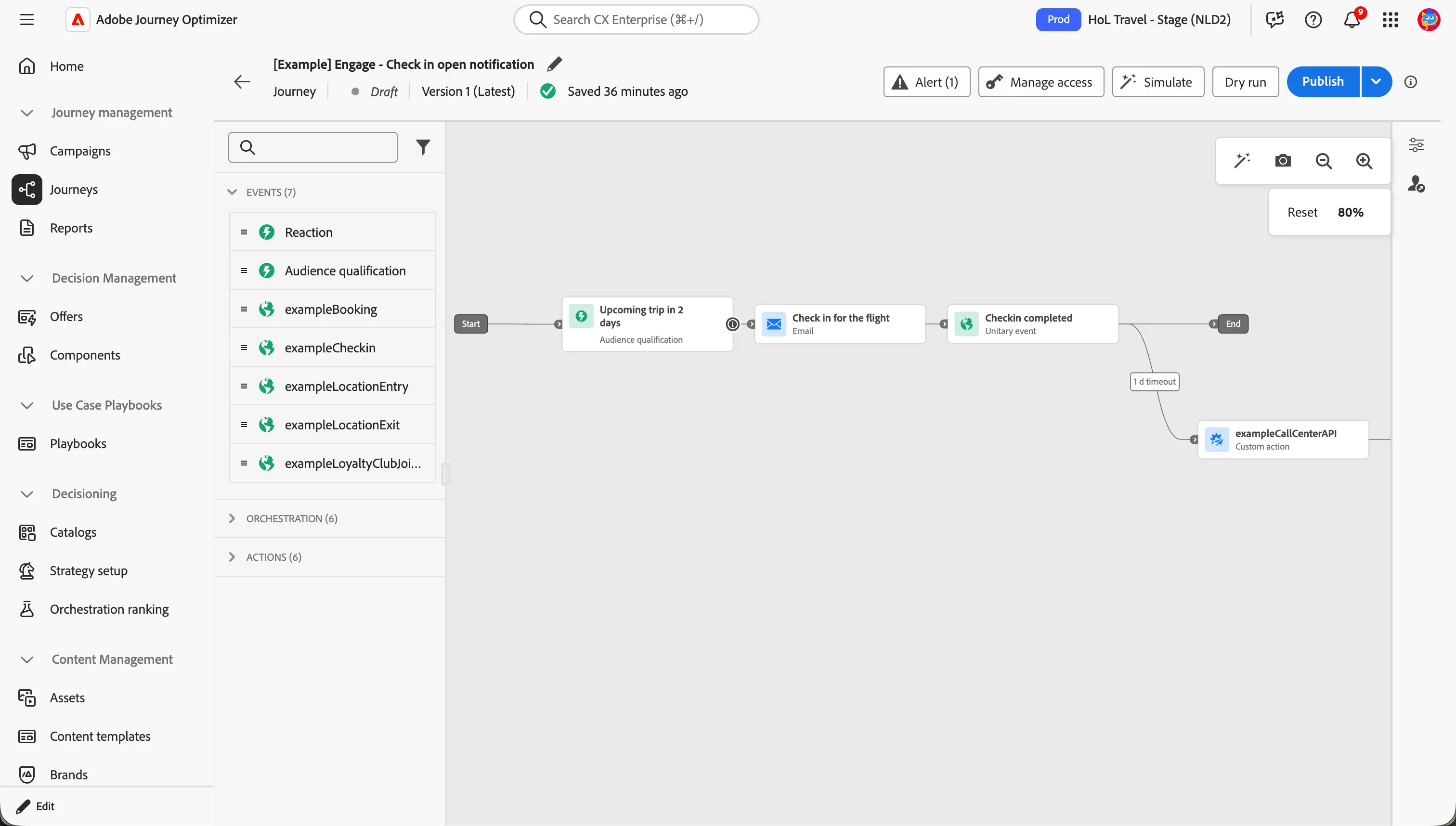
You've successfully composed a personalised Email Message to be sent to qualifying customers. You've used Decisioning to personalise your email with relevant offers.
Now review what the rest of the journey does.
The rest of the journey
After the check-in email for the flight is sent, the journey waits for a check-in completed event for a defined period. In a previous exercise, you went through the steps of adding an event into the journey canvas and configuring the timeout.
In this example, if the check-in is not completed within 1 day, the journey continues to a custom action that triggers a case to the call center platform, allowing an agent to proactively assist the traveler.
Click on the exampleCallCenterAPI action:
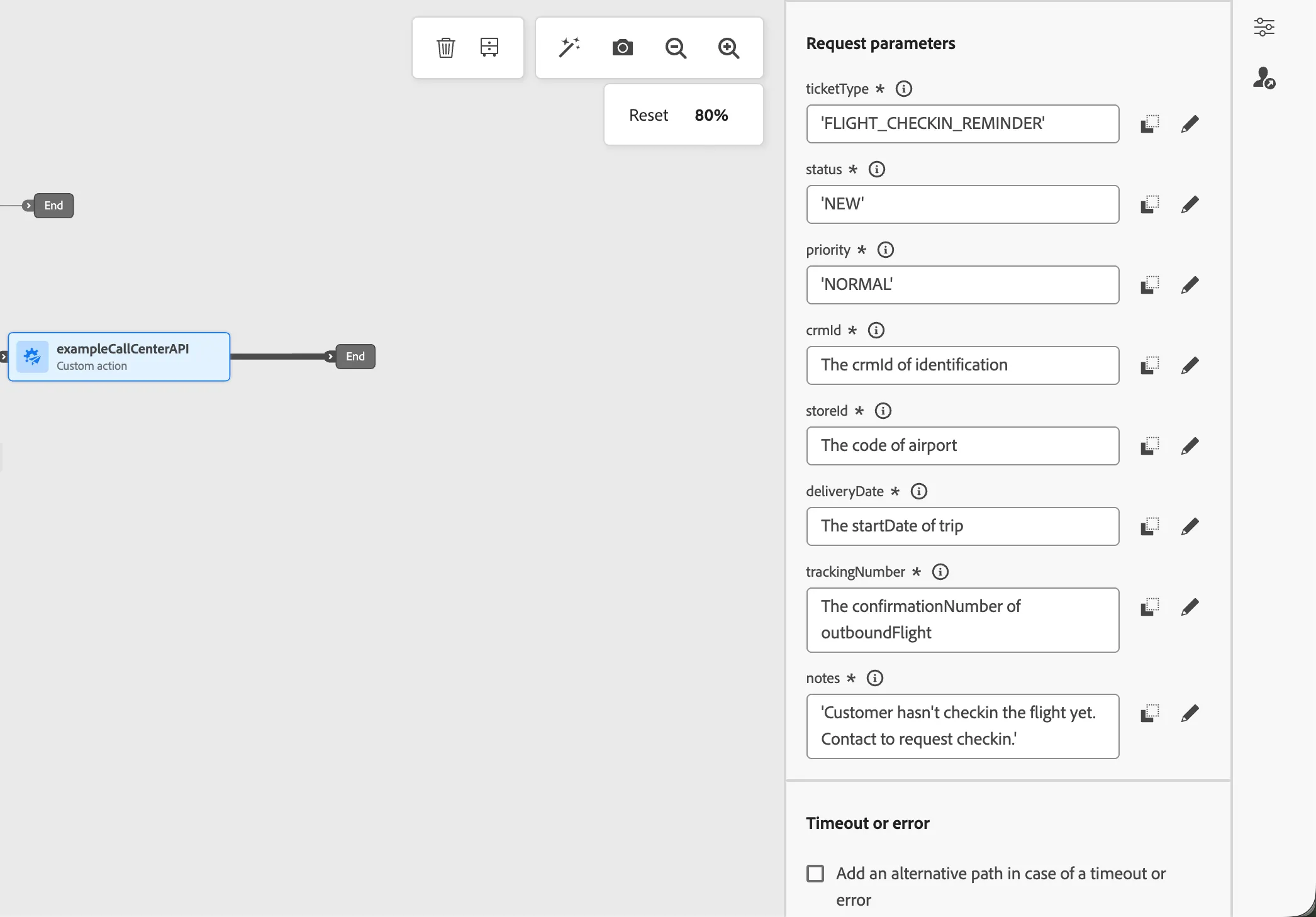
Behind the scenes this custom action is sending a REST call to the call center platform, however the parameters given in this request can be configured in the screen above. With this mapping, the call center agent will be provided with all details required to call the customer.
You have now successfully created the Delivery Notification journey using the Adobe Journey Optimizer. Next, we are going to test our journey using Test Mode.